“How many visitors can my hosting handle?” is the question every growing site owner asks, and most answers dodge it with a vague range. The honest answer is a small piece of math. Once you see how one visit turns into CPU time, memory, a PHP worker, disk reads and bytes on the wire, you can work out your own number in ten minutes.
This guide walks through that math with real plan limits and three worked examples: what a typical shared plan can carry, how to size a store, and what a newsletter burst does with and without caching. Then it covers the warning signs that you have outgrown a plan and what to upgrade to.
Quick answer: Your hosting can handle as many visitors as its busiest minute allows, not a fixed monthly number. Multiply your peak uncached requests per second by the seconds each one takes on the server: that is how many PHP workers, and roughly how many CPU cores, you need. Caching and a CDN shrink that number more than any upgrade.
Key takeaways
- Monthly visits are the wrong unit. Plans fail at the peak minute, when too many requests run at once.
- Only uncached requests cost real CPU, RAM and PHP workers. Cached pages mostly cost bandwidth.
- CPU cores set real capacity. A plan with many PHP workers but one core still queues under load.
- With no caching, a one core plan carries somewhere between about 25,000 and 500,000 visits a month, depending on page speed and how spiky the traffic is.
- Upgrade the resource that actually runs out. Your host’s usage graphs tell you which one it is.
Why is “visitors per month” the wrong number?
A server never sees a month. It sees the requests arriving right now, and each plan can only work on so many at the same moment. Two sites with the same monthly visits can behave completely differently: one spreads its traffic over the day, the other gets most of it in a single burst after a newsletter or a viral post.
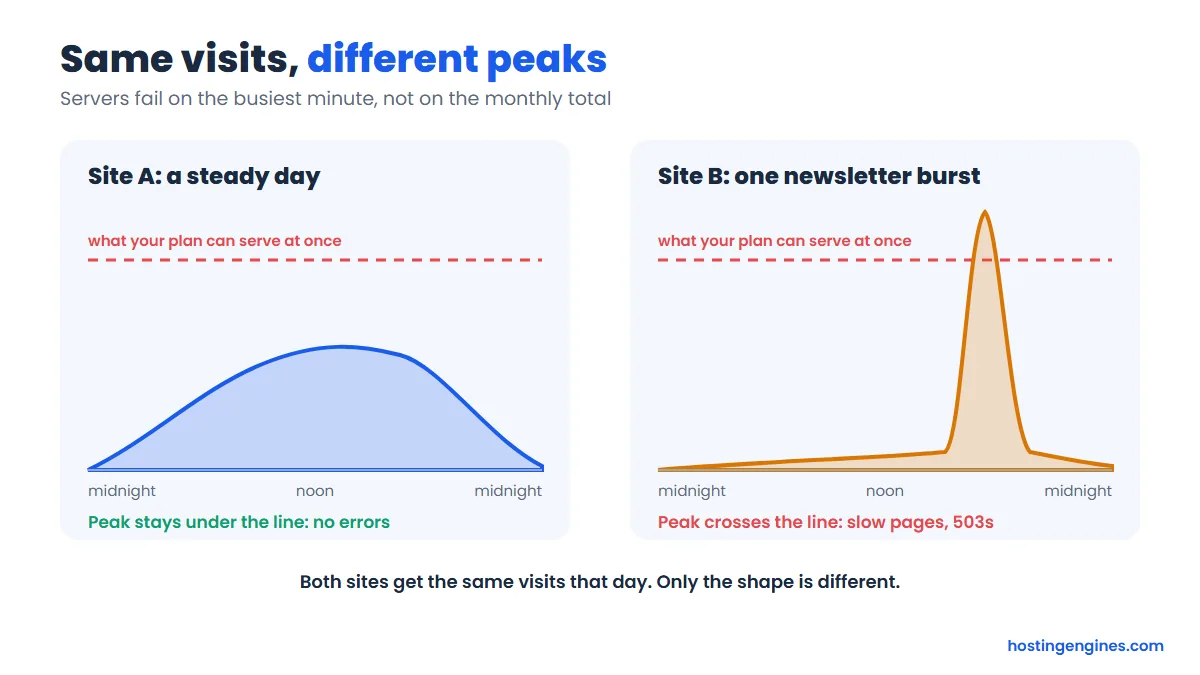
That is why host labels like “good for about 25,000 visits” are rough guesses for an average site. They assume an average page speed, average caching and an average traffic shape. Your site is not average, so the label can be wildly off in either direction.
Three numbers matter much more than the monthly total:
- Peak requests per second. How busy your busiest minute is. Your analytics real time view or hourly report shows it.
- Cache hit rate. The share of requests answered from a saved copy instead of running WordPress.
- Server time per uncached request. How long PHP and the database take to build one page that skips the cache.
Everything below builds on those three.
What does one visit actually use on the server?
One page view sends bytes over the network (bandwidth), opens a connection on the web server, and, if the page is not cached, occupies a PHP worker that burns CPU time and RAM while WordPress queries the database, which reads from disk (storage I/O). A cached view stops early and costs mostly bandwidth.
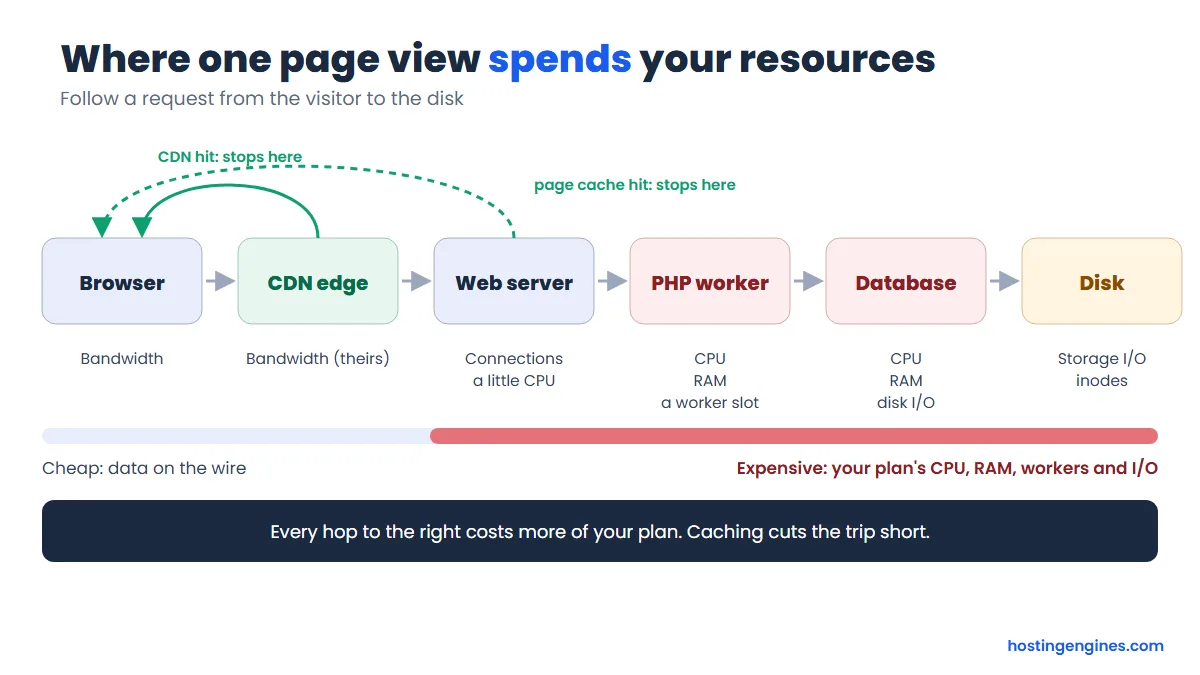
A typical page is also not one request. The HTML page pulls in images, CSS, fonts and scripts, often dozens of files. Those extra files are static: the web server or a CDN sends them without PHP, so they cost bandwidth and connections but very little CPU. The expensive part is the HTML page itself when it has to be built from scratch.
Here is how each resource maps to a visit, and what you see when it runs out:
| Resource | What uses it | What you see when it runs out |
|---|---|---|
| CPU | PHP building pages, database queries, image resizing, cron jobs | Pages slow down for everyone; the host throttles you |
| RAM | Each running PHP process and the database’s working memory | 503 or 500 errors, processes killed |
| PHP workers / entry processes | One per uncached request that is running right now | Requests wait in line, then 503, 508 or 504 errors |
| Storage I/O | Database reads and writes, backups, imports, logs | Everything gets sluggish, no error shown |
| Bandwidth | Every byte sent: HTML, images, scripts, downloads | Overage fees, a fair use warning, or a suspended site |
| Inodes | The number of files: uploads, cache files, emails, backups | Uploads and updates fail |
What are PHP workers, and why do they run out first?
A PHP worker is a process that builds one uncached page at a time. Your plan allows a fixed number of them. When every worker is busy, new requests wait in line; if the wait gets too long, visitors see a 503, 508 or 504 error. On cPanel hosts running CloudLinux the same idea is called entry processes.
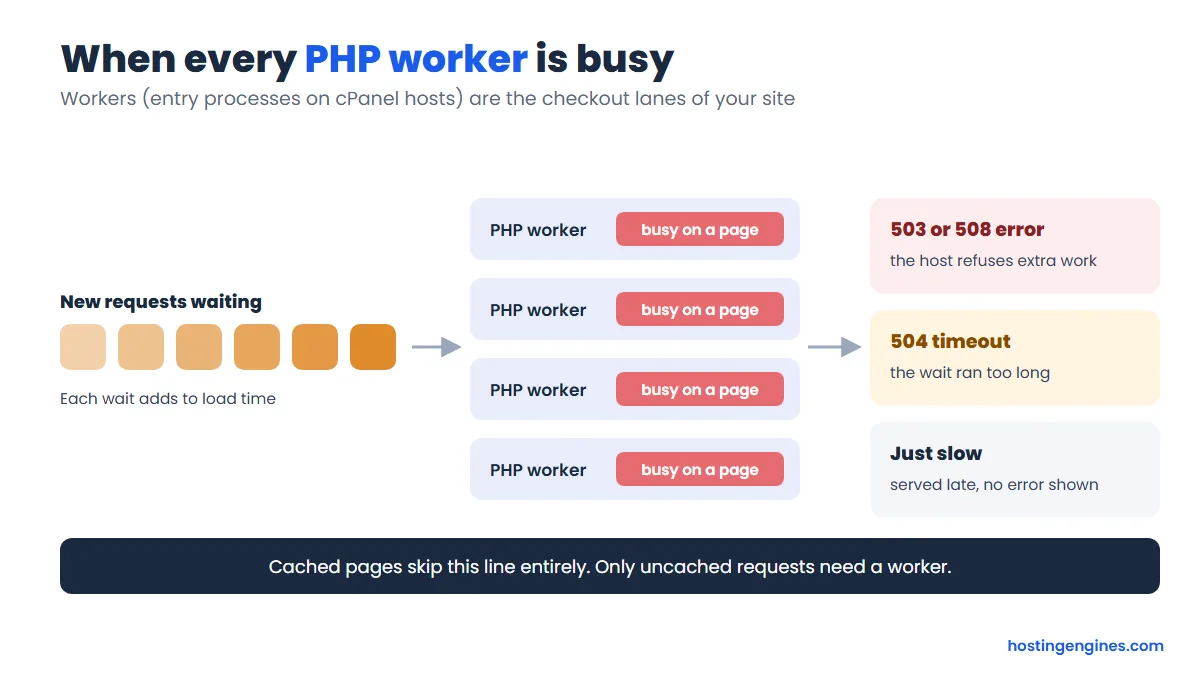
The names differ by host but the mechanics do not. CloudLinux’s documentation describes the entry processes limit as the cap on how many requests can enter your account at once, and says visitors get a 508 “Resource Limit Reached” error when it is exceeded. Hostinger’s support pages say visitors may face delays or timeouts when PHP workers run out, and a 503 when the RAM or process limit is hit.
Workers run out first for a simple reason: slow pages hold them longer. A page that takes two seconds to build ties up a worker four times longer than a page that takes half a second. So the same traffic needs four times as many workers. That leads straight to the formula.
How do you calculate how many visitors a plan can handle?
Use one line of queueing math: requests running at once = uncached requests per second × seconds each request takes. Keep that number below your plan’s CPU cores (with headroom) and below its PHP worker limit, and the site stays fast. Work backwards from the plan’s limits to get its visitor capacity.
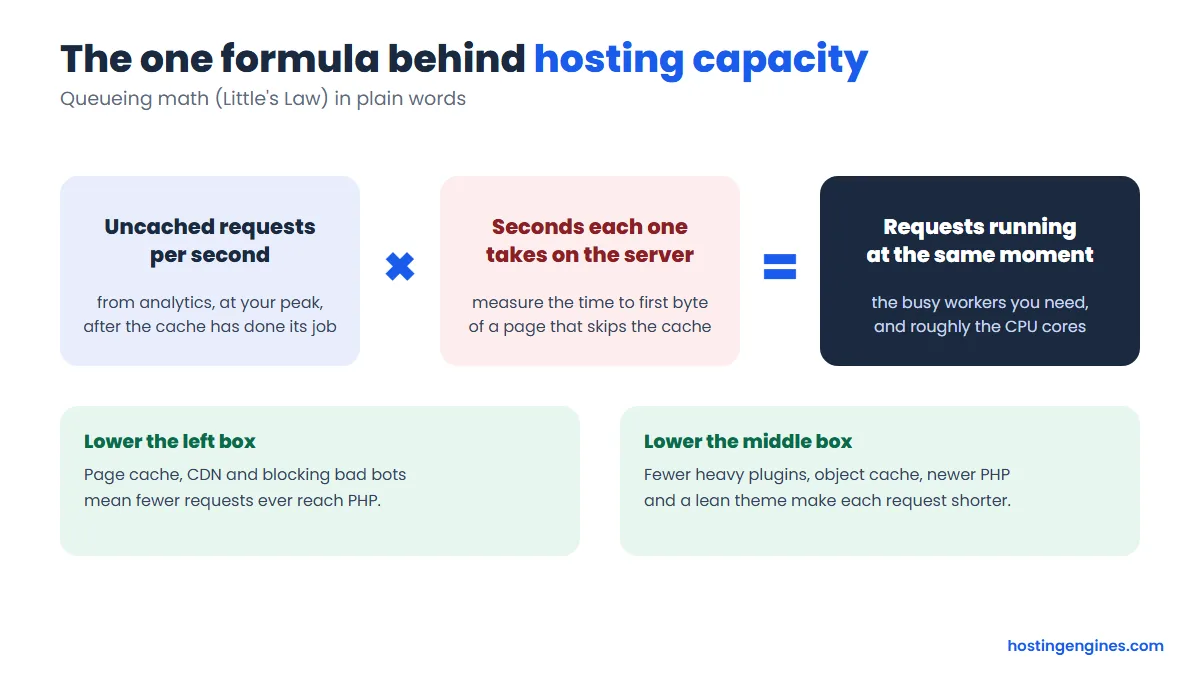
This is Little’s Law, a standard result from queueing theory that applies to any line of work waiting to be served, from checkout lanes to web servers. You need three inputs, and you can get all of them yourself:
- Peak requests per second. Take your busiest hour of pageviews from analytics and divide by 3,600. Multiply by 2 for the busiest minute inside that hour if traffic comes in bursts.
- Uncached share. 100% if you have no page cache. With a cache plugin or a CDN that caches HTML, your cache dashboard shows the hit rate; the uncached share is what is left.
- Seconds per uncached request. Load a page with a cache busting query string (for example
?nocache=1) and read the time to first byte in your browser’s network tab. Run it a few times and take the middle value.
Then add an allowance for traffic that analytics never shows: bots, crawlers, cron jobs and background AJAX calls also need PHP. We use an extra 30% in the examples below. Check your server logs if you want your own figure.
Why CPU cores matter more than the worker count
Here is the trap in plan comparisons. A worker is a slot, not processing power. If your plan offers 40 workers but only one CPU core, all 40 take turns on that one core. Each request gets a smaller slice, finishes later, and the queue grows. Pages slow down long before the worker limit is ever reached.
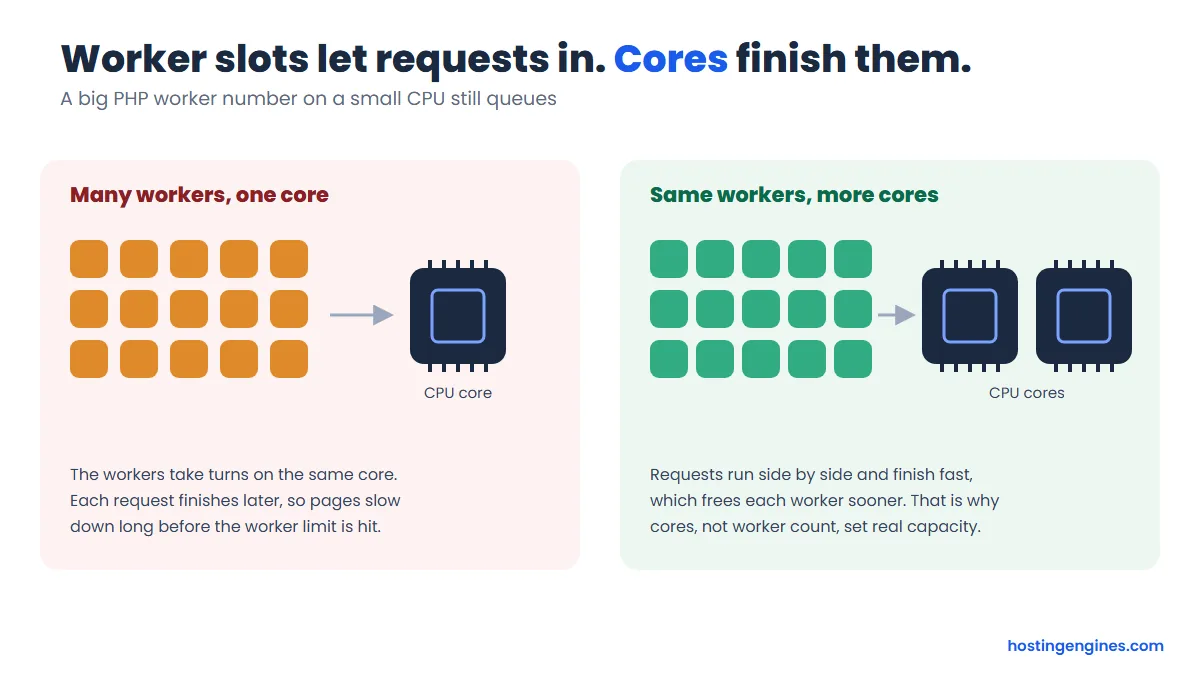
So when you run the formula, compare the result with the CPU cores first. If requests running at once is above roughly 0.8 per core, you are at the ceiling. Hostinger’s own guidance is to keep CPU usage below 80% during peak hours, which matches this rule.
Worked example 1: how many visitors can a one core plan carry?
Take a typical entry shared plan with one CPU core and no page caching. With pages that build in 0.8 seconds and a busiest minute about ten times the monthly average, it carries roughly 100,000 visits a month. Slow pages or spiky traffic cut that to around 25,000; fast pages and steady traffic push it past 250,000.
Here is the math so you can redo it with your numbers. We assume 2 pageviews per visit, a 30% allowance for bots and background requests, and a target of 80% CPU at the peak.
- One core at 80% gives 0.8 seconds of CPU per second.
- At 0.8 seconds per page, that is 1 uncached request per second at the peak.
- If the busiest minute is 10 times the average, the average can be 0.1 requests per second.
- A 30 day month has 2,592,000 seconds, so that is about 259,000 requests a month.
- Take out the 30% bot allowance: about 199,000 real pageviews.
- At 2 pageviews per visit: about 100,000 visits a month.
The two inputs that swing the answer most are page speed and how spiky your traffic is. This table runs the same math for a one core plan with no caching:
| Uncached page time | Steady traffic (peak = 5× average) | Normal (peak = 10× average) | Spiky (peak = 20× average) |
|---|---|---|---|
| 0.3 seconds (lean theme, few plugins) | about 530,000 visits | about 265,000 visits | about 135,000 visits |
| 0.8 seconds (typical WordPress) | about 200,000 visits | about 100,000 visits | about 50,000 visits |
| 1.5 seconds (page builder, heavy plugins) | about 105,000 visits | about 55,000 visits | about 25,000 visits |
These are estimates from the formula, not test results, and real sites add their own surprises (a slow search query, a plugin that calls an outside API). But they show why one site is happy on a basic plan at 200,000 visits while another struggles at 20,000. A plan with two cores doubles every number in the table. Good page caching multiplies them again, because most visits never reach PHP at all.
Real plan limits to plug in
Hosts publish their limits in support articles or show them in the control panel. As a worked reference, here are Hostinger’s current shared and cloud plan limits from its plan parameters page. Your own hPanel shows the limits that apply to your plan version.
| Plan | CPU cores | RAM | PHP workers | Disk I/O | Bandwidth |
|---|---|---|---|---|---|
| Single | 1 | 1 GB | 20 | 6,144 KB/s | 100 GB |
| Premium | 1 | 2 GB | 40 | 12,288 KB/s | Unlimited |
| Unlimited | 2 | 3 GB | 60 | 20,480 KB/s | Unlimited |
| Cloud Startup | 4 | 4 GB | 100 | 20,480 KB/s | Unlimited |
| Cloud Professional | 5 | 6 GB | 200 | 40,960 KB/s | Unlimited |
Notice what the jump from Single to Premium does and does not change. RAM, workers and I/O double, but the CPU stays at one core. If your site is CPU bound, that upgrade barely helps; the move that adds processing power is to two cores (Unlimited) or to a cloud plan. This is exactly the kind of thing the formula reveals before you pay for the wrong upgrade.
Worked example 2: how do you estimate what your own site needs?
Work from your analytics forward: pageviews in the busiest hour, the share that skips the cache, and the time each uncached page takes. Multiply them to get cores and workers, multiply workers by memory per process to get RAM, and multiply pageviews by page weight to get bandwidth. Then add headroom.
Here it is for a small WooCommerce store. Stores are harder than blogs because cart, checkout, account pages and product searches cannot be served from a page cache.
| Input | Value for this store | Where to find yours |
|---|---|---|
| Visits a month | 60,000 | Analytics |
| Pageviews per visit | 4 | Analytics (pages per session) |
| Busiest minute vs average | 10× on a normal day, 30× on a sale day | Analytics hourly report, past campaigns |
| Pages that skip the cache | 35% | Cart, checkout, account, search and filter pages in your analytics |
| Time per uncached page | 1.2 seconds | Time to first byte with the cache bypassed |
| Memory per PHP process | 128 MB | Host’s usage page, or PHP memory limit as an upper bound |
Now the steps:
- Pageviews per second. 60,000 visits × 4 = 240,000 pageviews a month, which is 0.093 per second on average.
- Peak. × 10 = 0.93 pageviews per second in the busiest minute.
- Uncached requests. × 35% = 0.32 per second, plus 30% for bots and background calls = 0.42 per second.
- Requests running at once. 0.42 × 1.2 seconds = 0.5. Half a core at the normal peak, so one core is fine with room to spare.
- Sale day. At 30× the average, the same math gives 1.5 requests running at once. That needs about two cores at 80% use.
- RAM. A handful of PHP processes at 128 MB each is under 1 GB, plus the database. A 2 GB to 3 GB plan covers it.
- Bandwidth. 240,000 pageviews × about 2.5 MB = roughly 600 GB a month if nothing is cached in the browser or a CDN. That is far over a 100 GB cap, which is why stores should avoid capped plans.
The verdict for this store: a one core plan works most days, but sales would push it into errors exactly when it matters. A plan with two or more cores, such as an upper shared tier or an entry cloud plan, is the right size. The page weight figure comes from the HTTP Archive’s Web Almanac, which puts the median mobile home page at roughly 2.5 MB; check your own pages in your browser’s network tab.
Turning this into a VPS size: on a VPS you set the PHP worker count yourself (in PHP-FPM it is called max children). A common way to size it is the RAM left after the operating system and database, divided by memory per process. For example, a 4 GB server that keeps 1.5 GB for the system and MySQL has about 2.5 GB for PHP, or roughly 20 workers at 128 MB. The CPU rule still applies: 20 workers on two cores will queue if every request is slow.
How much do caching and a CDN change the math?
More than anything else you can buy. Page caching serves saved HTML without running PHP, so cached requests drop out of the formula. A CDN goes further and answers requests from servers near the visitor, taking most of the bandwidth off your plan. Going from no cache to a 95% hit rate cuts the CPU you need by about 20 times.
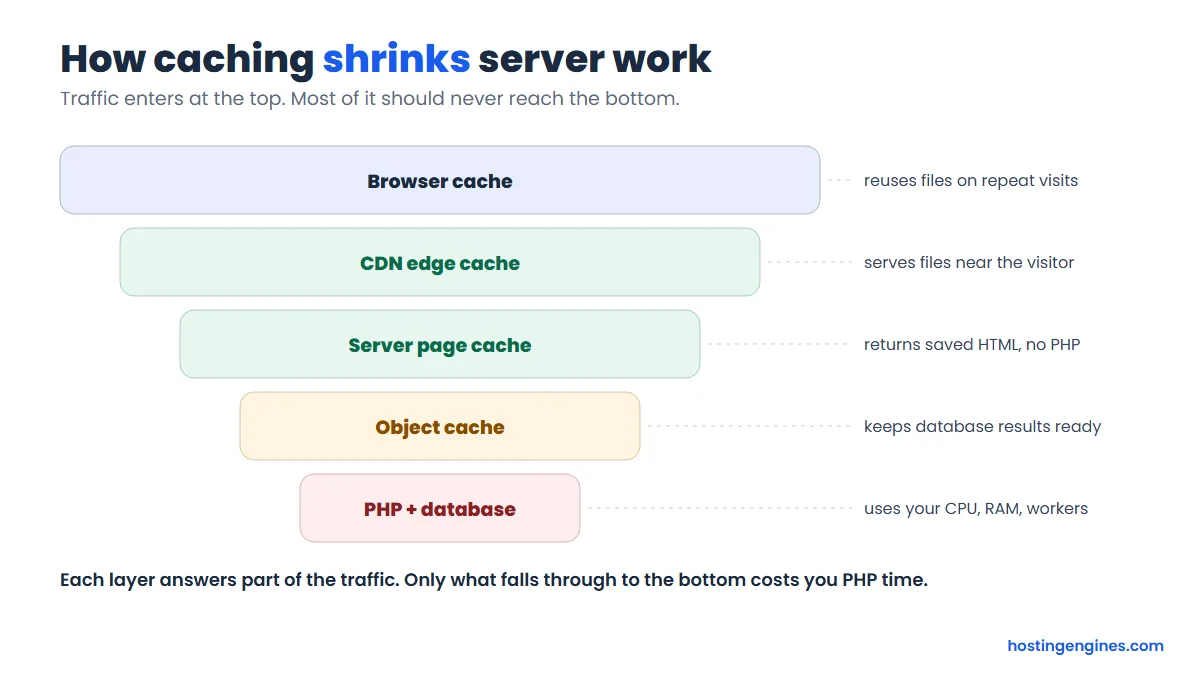
WordPress’s own performance documentation says page caching can improve performance “several hundred times over” for fairly static pages. Each layer catches a different part of the traffic:
- Browser cache stops repeat visitors from downloading the same images and scripts again.
- CDN edge cache serves static files, and with full page caching the HTML too, from a location near the visitor.
- Server page cache (LiteSpeed Cache, WP Rocket, a host’s built in cache) returns saved HTML without starting WordPress.
- Object cache (Redis or Memcached) keeps database results in memory, so uncached pages build faster.
- PHP and the database only handle what is left: logged in users, carts, checkouts, searches and admin work.
Worked example 3: a newsletter burst, with and without caching
A blog sends a newsletter and gets 20,000 visits in one hour, at 1.5 pageviews each. That is 30,000 pageviews in the hour, about 8.3 per second on average and around 17 per second in the busiest minutes. Each uncached page takes 0.6 seconds. Here is what the formula says at different cache hit rates:
| Cache hit rate | Requests reaching PHP per second | Requests running at once | What it needs |
|---|---|---|---|
| 0% (no cache) | about 17 | about 10 | Around ten cores. Any shared plan fails. |
| 80% | about 3.3 | about 2 | A two core plan, running flat out |
| 95% | about 0.8 | about 0.5 | Half of one core. An entry plan copes. |
| 99% (CDN caches pages) | about 0.2 | about 0.1 | Almost nothing reaches the server |
Same visitors, same plan, a hundred times less work. If you expect bursts like this, our guide on how to handle traffic spikes without upgrading hosting walks through the cache, CDN and bot settings step by step.
Bandwidth: who sends the bytes
Bandwidth is the simplest resource to estimate: pageviews × page weight. The same burst moves around 75 GB in one hour if your server sends every file, which works out to roughly 170 megabits per second. A CDN sends most of that from its own network, and your server only fills each edge location once.
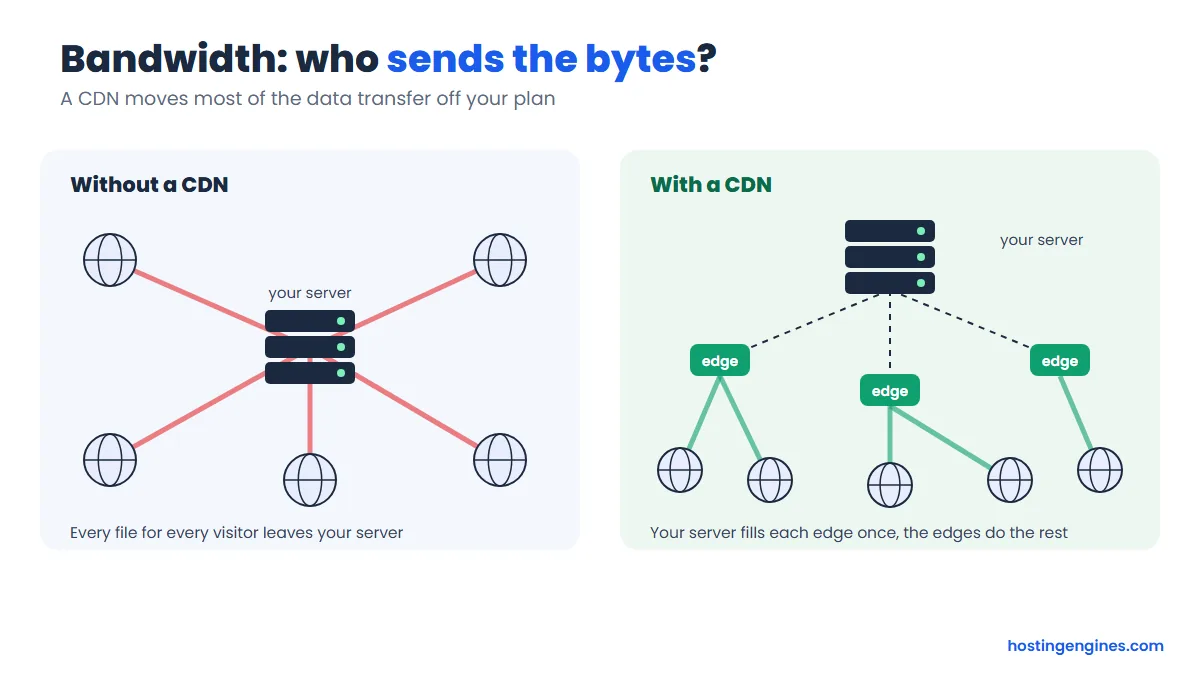
For monthly estimates and examples by site type, see how much hosting bandwidth your website needs. Remember that “unlimited” bandwidth still sits under a fair use policy, so large downloads and video belong on a CDN or a video platform either way.
What about storage I/O and inodes?
Storage I/O is how fast your account may read and write to disk, usually capped in KB/s on shared plans. Uncached database queries, backups, imports, search and busy logs eat it. When you hit the cap, the host throttles disk access and everything slows down, but no error appears. Inodes cap the number of files you can store.
I/O rarely limits a cached blog. It does bite stores with large product catalogs, sites with heavy search or filtering, and anyone running backups or big imports during busy hours. The fixes come in this order: clean the database (old revisions, expired transients, spam comments), add an object cache so repeat queries skip the disk, schedule backups for quiet hours, and only then move to a plan with a higher I/O cap or NVMe storage.
Inodes are a count of files, not their size. Every image size WordPress generates, every cache file and every stored email counts. Page cache plugins can create thousands of files, so if you hit the inode limit, clear old cache folders and backups before anything else.
What are the signs you have outgrown your hosting plan?
The clearest sign is a usage graph that sits flat at the plan’s limit during busy hours, again and again. Others: 503, 508 or 504 errors at peak times, pages that slow down when traffic rises even though they are cached, a slow admin area during traffic, and warning emails from your host about resource use.
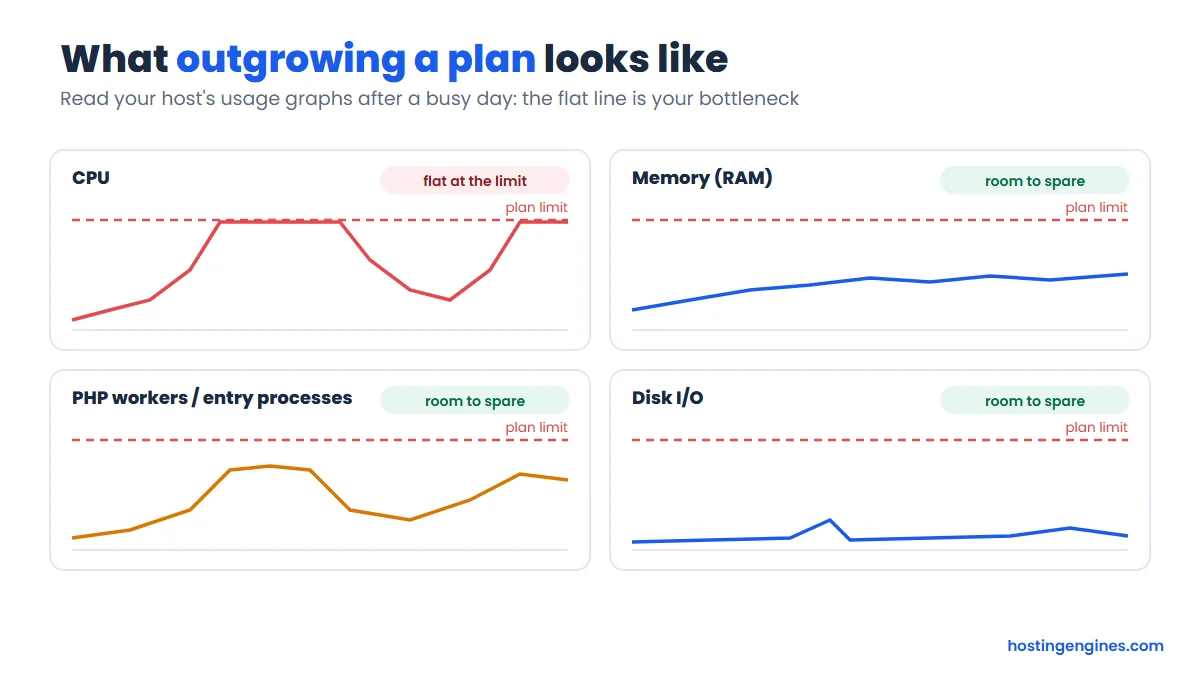
Your host’s resource usage page is where you confirm it. In cPanel it is called Resource Usage; in Hostinger’s hPanel it sits under Hosting plan, Resources Usage, and a red line on each chart marks your plan’s limit. Look at the graphs after your busiest day and match what you see to the cause:
| What you see | Likely bottleneck | Try this first |
|---|---|---|
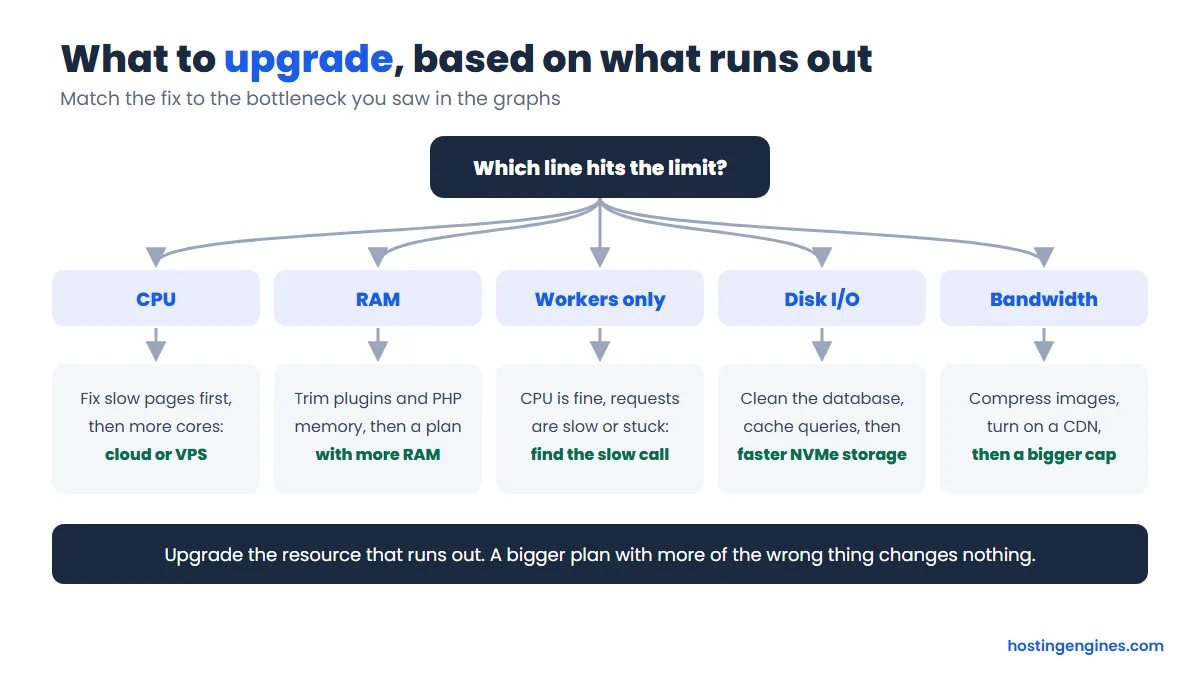
| CPU graph flat at the top, pages slow | CPU | Page cache, remove heavy plugins, newer PHP version |
| 503 errors, RAM graph at the limit | RAM / processes | Fewer plugins, lower PHP memory use, object cache |
| 508 errors or a long request queue | PHP workers / entry processes | Cache more pages, find slow requests, block bad bots |
| Site sluggish, CPU fine, no errors | Storage I/O | Database cleanup, object cache, move backups off peak |
| Overage notice or fair use email | Bandwidth | Compress images, turn on a CDN |
| Uploads or updates fail | Inodes or disk space | Delete old backups, cache files and unused media |
One rule decides when to stop optimizing and upgrade. Hostinger, for example, suggests upgrading soon if the RAM or process limit is hit 10 to 20 times in a month. More generally: if you have caching on, the bots blocked and the heavy plugins gone, and the graphs still touch the limit at normal peaks, the plan is simply too small. Our checklist of signs you have outgrown shared hosting goes deeper on that decision.
What should you upgrade to?
Upgrade the resource that runs out, not the plan name. If CPU is the limit, you need more cores: an upper shared tier with more cores, a cloud plan, or a VPS. If RAM is the limit, you need more memory. If only PHP workers run out while CPU is calm, fix the slow requests first, because more workers alone will not help.
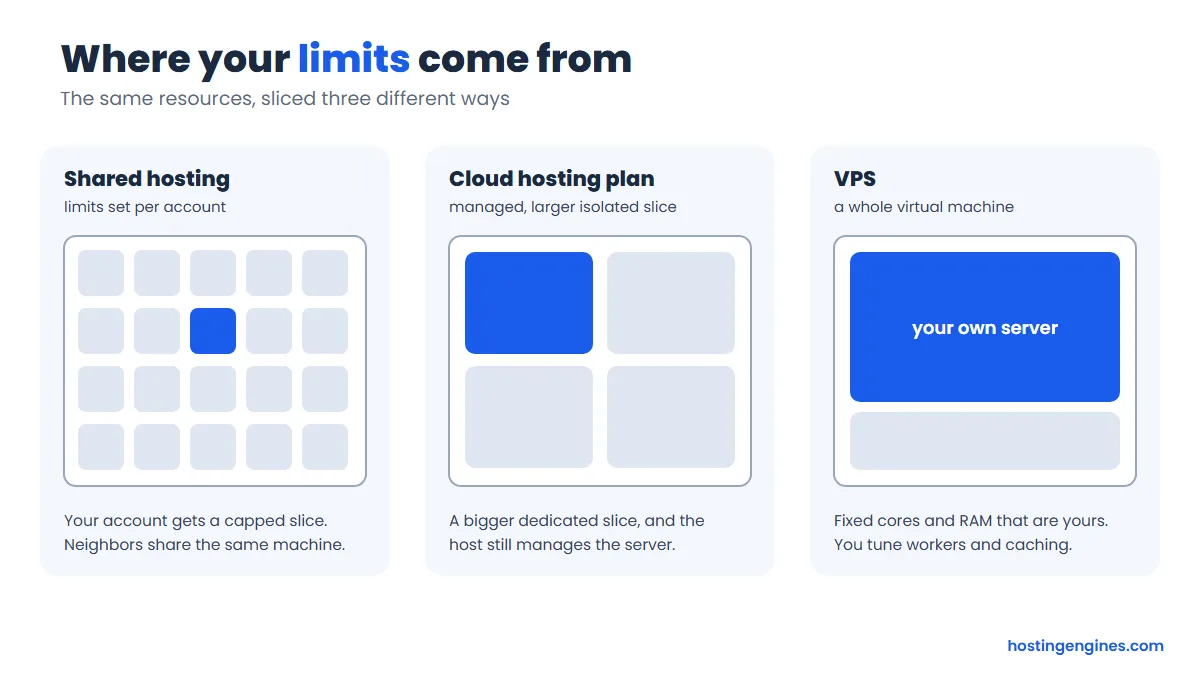
The hosting type matters too, because it decides how your limits are set and who manages them:
| Hosting type | Where it fits | Watch out for |
|---|---|---|
| Shared hosting | Blogs and small business sites with good caching and steady traffic | One or two cores, hard caps on workers and I/O, noisy neighbors |
| Managed cloud plan | Busy WordPress sites and small stores that want more cores without running a server | Price jump, limits still set by the host |
| VPS | Stores, membership sites and apps that need guaranteed cores and RAM and custom tuning | You (or a paid panel) manage updates, security and PHP-FPM settings |
| Dedicated or autoscaling cloud | Large stores, big media sites, apps with heavy peaks | Cost and the skills to run it |
If you are moving to a virtual server, start with what VPS hosting is and how it works, then compare providers in our best VPS hosting roundup. Size it with the worked example above: count cores from your peak requests, RAM from your workers, and leave about 30% headroom so a good day does not become an outage.
FAQ
How many visitors can shared hosting handle?
It depends on page speed, caching and traffic shape more than on the plan. A one core shared plan with no cache carries somewhere between about 25,000 and 500,000 visits a month by the formula in this guide. With good page caching, many sites go well beyond that before CPU becomes the problem.
How many PHP workers do I need?
Multiply your peak uncached requests per second by the seconds each takes. A blog at 0.5 uncached requests per second with 0.8 second pages needs under one busy worker. Then check cores: workers beyond about one per core of steady CPU work only queue. Stores and membership sites need more because their pages cannot be cached.
How much RAM does my website need?
Count the PHP processes running at your peak and multiply by memory per process, often 64 MB to 128 MB for WordPress and more for WooCommerce. Add the database and, on a VPS, the operating system. Most small sites fit in 1 GB to 2 GB on shared hosting; busy stores usually want 4 GB or more.
Does more traffic always mean I need a bigger plan?
No. Cached traffic is cheap, so many sites double their visitors without changing plans. You need a bigger plan when your usage graphs still hit a limit at normal peaks after caching, a CDN, bot blocking and plugin cleanup, or when your pages cannot be cached.
What is the difference between bandwidth and PHP workers?
Bandwidth is how much data your site sends over a month. PHP workers limit how many uncached pages can be built at the same moment. A site can have unlimited bandwidth and still throw errors if too many uncached requests arrive together.
Why do I get 508 or 503 errors when traffic is low?
A bot crawling hundreds of pages, a slow plugin, a stuck cron job or one heavy database query can fill your workers or memory without any real visitors. Check your access logs for repeated requests from one source and look at the usage graphs for the hour the errors appeared.
Is a CDN enough to handle a traffic spike?
Often, yes, if it caches whole pages and not just images. A CDN with full page caching answers most anonymous visitors itself, so the spike barely reaches your server. Logged in users, carts and checkouts still hit PHP, so stores need server capacity for those.
The short version
Your plan’s real capacity is set by its busiest minute: uncached requests per second times seconds per request, compared with the cores and workers you have. Make pages faster and cache more, and the same plan carries several times the traffic. When the graphs still hit the ceiling after that, upgrade the exact resource that runs out. If a launch or campaign is coming up, the next stop is our traffic spike guide.