
This free WebP converter turns JPG, PNG, GIF and BMP images into smaller WebP files right in your browser. Your images are never uploaded to a server, there’s no sign-up, and you can convert up to 30 at a time.
How to convert images to WebP
- Drag your images onto the box, or click it to pick files. You can add up to 30 images per batch.
- Set the Quality slider (40 to 100, default 80). Lower numbers give smaller files with more visible compression. Every image re-converts automatically when you move it, so you can try a few values and watch the sizes change.
- Optionally enter a Max width in pixels. Wider images are scaled down to that width with the height kept in proportion. Smaller images are left at their size, never stretched. Leave it empty to keep the original dimensions.
- Click Download next to any image, or Download all (.zip) to grab the whole batch in one file.
Your images stay on your device
Many online converters upload your files to their servers and delete them later. This one doesn’t. The conversion runs in JavaScript inside your own browser using its built-in image encoder, and the files never leave your computer or phone. That makes it a safe choice for client work, product photos before launch, or anything you’d rather not hand to a stranger’s server. Once the page has loaded, it even keeps working if your connection drops.
A side effect worth knowing: because each image is redrawn and saved fresh, hidden metadata such as camera details and GPS location isn’t copied into the WebP file. For photos you plan to post online, that’s usually a plus.
How to read the results
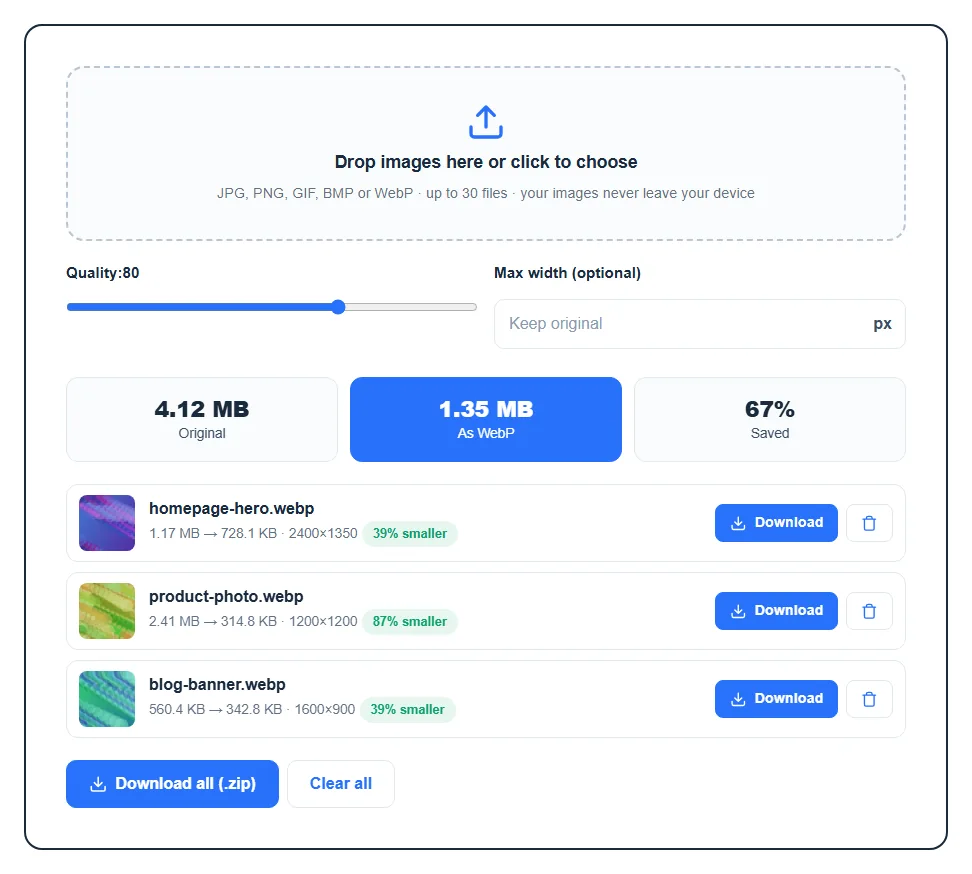
- Original, As WebP and Saved: the three totals at the top show the size of your whole batch before and after, and the overall saving in percent.
- Each file gets a thumbnail, its new
.webpname, the old and new size, and the final width and height in pixels. - “% smaller” in green is the saving for that image. If you see “% larger” in amber, the WebP came out bigger than the original. That happens with images that were already tightly compressed or tiny graphics. Just keep the original for those, or lower the quality.
- “animated GIFs keep only the first frame”: the converter saves still images, so an animated GIF becomes a single frame.
- “Could not read this image”: the file is damaged or in a format your browser can’t open (HEIC photos from iPhones are a common one). Export it as JPG first.
If your browser can’t create WebP files at all, the tool tells you straight away instead of showing the drop box. A current version of Chrome, Edge or Firefox will work. Transparent areas in PNGs stay transparent in the WebP, so logos and icons convert cleanly.
Why convert your site’s images to WebP
Images are usually the heaviest part of a web page. WebP files are typically a good deal smaller than JPGs or PNGs that look the same, so pages load faster, use less of your hosting bandwidth and score better in speed tests. Want to see how much your images weigh right now? Run a page through the page size checker, convert the biggest files here, and check again.
Pairing WebP with sensible image widths is one of the easiest speed wins there is. It’s a big part of how our own site scores 100 on PageSpeed Insights. Your host matters too, and our guide on how web hosting affects website speed covers the rest.
FAQ
Is this WebP converter safe to use with private images?
Yes. Everything happens inside your browser, and no image is sent to our server or anyone else’s. When you close the tab, the converted files are gone from memory unless you downloaded them.
What quality setting should I use?
Start with the default of 80. For most photos it looks the same as the original at a fraction of the size. Go down to 60 or 70 for large background images, and up to 90 or more for product shots or screenshots with fine text.
Is WebP better than JPG and PNG?
For websites, usually yes. WebP gives smaller files than JPG at similar quality and, unlike JPG, supports transparency like PNG does. JPG and PNG still make sense where you need maximum compatibility, such as email attachments or older software.
Do all browsers support WebP images?
All modern browsers can display WebP, including Chrome, Edge, Firefox, Safari and Opera on desktop and mobile. So you can use WebP images on your site without worrying about visitors seeing broken pictures.
Can I upload WebP images to WordPress?
Yes. WordPress accepts WebP in the media library like any JPG or PNG, as long as your hosting server’s image library supports it, which most current hosts do. Convert here, then upload the files as usual.
Is there a file size or count limit?
You can add up to 30 images per batch. There’s no set file size limit, but since the work happens on your device, very large images can be slow on an older phone or laptop. Using the Max width option keeps things quick.