Shared hosting is where almost every site starts, and for good reason. It’s cheap, the host handles the server, and a small blog or business site runs fine on it for years. But at some point you may notice your pages dragging at busy times, or your host starts sending emails about “excessive resource usage.” That’s usually the moment people ask when to leave shared hosting, and whether they really have to.
This guide gives you the concrete signs, a quick way to tell whether the problem is your plan or your site, and the upgrade options that make sense next, with real starting prices.
Quick answer: leave shared hosting when you keep hitting your plan’s limits (resource emails, 508 errors, CPU or entry-process graphs at the ceiling) after you’ve already added caching and cleaned up the site, or when you need something shared hosting can’t give you: a busy store or members area, isolation for sensitive data, or root access for custom software. If it’s only an occasional slowdown, fix the site first. It’s cheaper.
New to the basics? Our guide to what shared hosting is and how it works covers how hundreds of sites share one server, which is the root of every sign below.
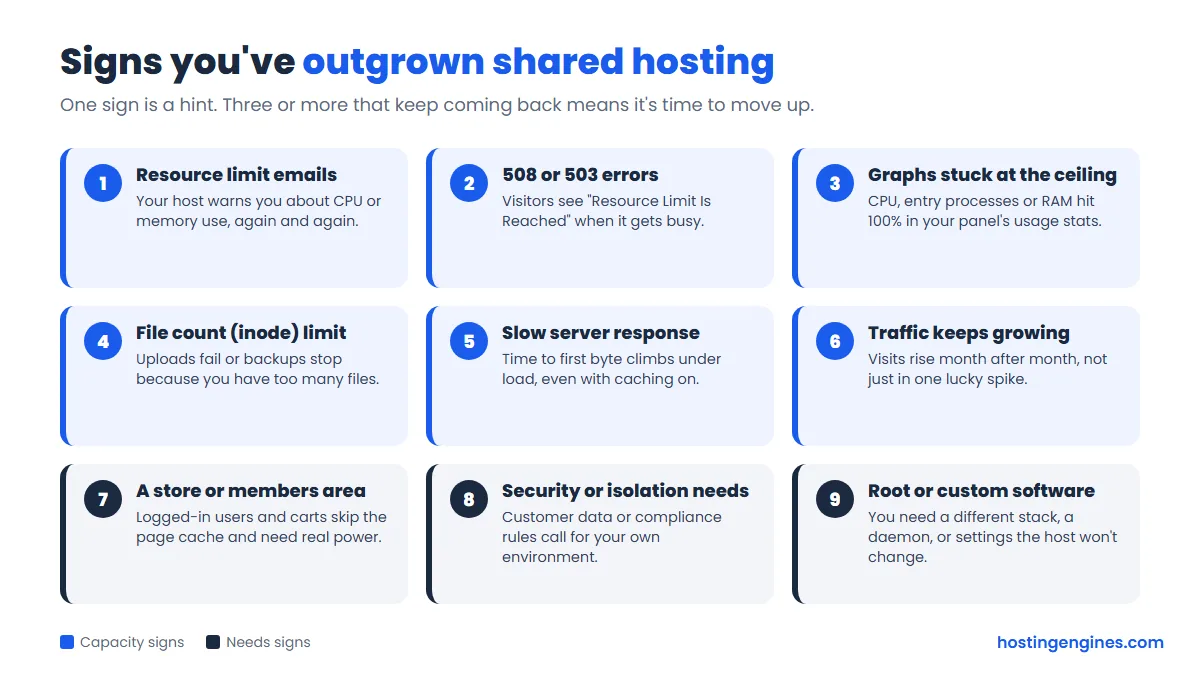
When to leave shared hosting: 9 signs you’ve outgrown it
One sign on its own is a hint. Three or four that keep coming back, week after week, mean your site has grown past what the plan was built for.
1. Your host keeps emailing you about resource usage
Shared hosts watch every account. When yours uses more CPU or memory than its share for too long, you get a warning, then sometimes a throttle, and in bad cases a temporary suspension. One email after a viral post is nothing to worry about. A pattern of them is the clearest signal there is, because it’s the host telling you directly that you’ve outgrown the box you’re in.
2. Visitors see 508 or 503 errors at busy times
Many shared hosts run CloudLinux, which puts each account inside its own set of limits. When too many requests arrive at once, new visitors get a “508 Resource Limit Is Reached” page instead of your site. Some hosts show a 503 instead. If you see these in your error logs during traffic peaks, and not because of a bot hammering one URL, your plan simply can’t serve that many people at the same time.
3. CPU, RAM or entry processes sit at the limit
Open the resource usage page in your control panel (in cPanel it’s usually called “Resource Usage”; Hostinger has its own usage graphs in hPanel). Look at CPU, physical memory and entry processes. Entry processes are roughly the number of PHP requests your account can run at the same moment, and they’re the limit busy WordPress sites hit first. If the graphs keep touching the top line and the panel logs “faults,” you’re out of room.
4. You’re running out of inodes (files)
An inode is one file or folder. Shared plans cap how many you can have, even when they advertise lots of disk space. Big media libraries, cache folders, old backups and email all count. When you hit the cap, uploads fail, backups stop and updates break in odd ways. Clean out old backups and cache first; if you’re still near the limit, the site has grown past the plan.
5. Server response gets slow under load
Time to first byte (TTFB) is how long the server takes to start answering. A cached page on decent shared hosting should start arriving quickly. If TTFB is fine at 3 a.m. but crawls at lunchtime, even with page caching on, the server is busy, either with your traffic or your neighbors’. You can’t fix the neighbors, which is one of the honest downsides of shared hosting.
6. Your traffic keeps climbing month after month
There’s no magic visitor number where shared hosting stops working. A well-cached blog can serve a lot more than a WooCommerce shop with the same traffic. What matters is the trend. If your analytics show steady growth and the resource graphs from sign 3 creep higher every month, plan the move before a busy season forces it on you. A single spike from a newsletter or a viral post is different: that’s often better handled with caching and a CDN than with a new plan.
7. You’re adding a store, memberships or courses
Page caching is what lets shared hosting punch above its weight, and logged-in users skip it. Carts, checkouts, member dashboards and course progress all have to be built fresh by PHP and the database on every click. A site that ran happily as a blog can struggle the week you switch on WooCommerce or a membership plugin. If your site is about to become an app rather than a set of pages, budget for more resources.
8. You need more isolation for security or compliance
Good shared hosts separate accounts well these days, but you still share a server, an IP address and the software stack with strangers. If you store customer data, need a dedicated IP, or have a client or regulation asking where and how the data lives, your own environment makes those conversations a lot easier.
9. You need root access or software the host won’t install
Shared hosting gives you a control panel, not the server. Want a specific PHP extension, a Node.js or Python service that runs all the time, a different database, custom Nginx rules or a background worker? On shared hosting the answer is often no. If you keep working around the platform instead of building on it, that’s a sign too.
Is it the plan or the site? Check these first
Before you pay more every month, make sure the hosting is really the bottleneck. A bloated site will be slow on any plan, and moving it just makes the slowness more expensive. Run through this list:
- Page caching is on. Use the cache your host supports (LiteSpeed Cache on LiteSpeed servers, for example). Without it, every visit runs PHP and the database.
- Heavy plugins are gone. Page builders, related-post plugins, broken link checkers and statistics plugins that log every visit can eat a whole plan’s CPU by themselves.
- Images are compressed and sized. Serve WebP at the size they’re shown, and lazy-load the ones below the fold. Our free JPG and PNG to WebP converter handles the conversion in your browser.
- Static files come from a CDN. A CDN takes images, CSS and scripts off your server entirely.
- Bots are under control. Check your access logs. Aggressive crawlers and login attacks can trigger the same limits as real visitors.
- PHP is current. Newer PHP versions are noticeably faster, and switching is usually a dropdown in your panel.
We go deeper on each of these in how web hosting affects website performance and speed, and the benefits of putting a CDN in front of your hosting are worth reading if you haven’t set one up yet.
Here’s the simple test: after the cleanup, open your resource usage page during your busiest hours. If the limit faults line up with real traffic and the site is already lean, it’s the plan. If the faults happen at random times with little traffic, look for a plugin, a cron job or a bot first.
Where to go after shared hosting
You don’t have to jump straight to a server you manage yourself. Think of it as a staircase: take the smallest step that fixes your actual problem, and only climb higher when that step runs out too.
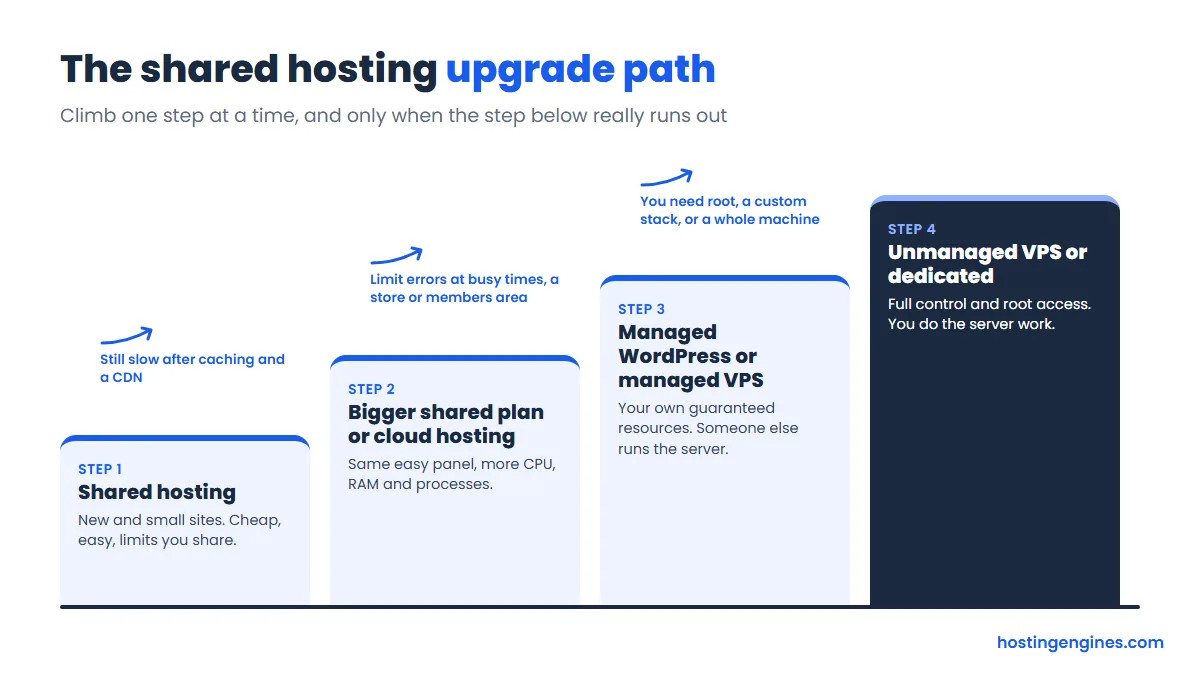
| Option | Best for | Who runs the server | Example starting price |
|---|---|---|---|
| Bigger shared plan | Sites just over the limit, several small sites | The host | Hostinger Unlimited, from $3.99/month (48-month term) |
| Cloud hosting | Growing sites and stores that want the same easy panel | The host | Hostinger Cloud Startup, from $7.99/month (48-month term) |
| Managed WordPress | Business WordPress sites that want hands-off care | The host | DreamPress 1, from $14.99/month (1-year term) |
| Managed VPS / cloud | Busy sites, stores, agencies with several sites | The platform (you pick resources) | Cloudways, from $11/month (billed monthly) |
| Unmanaged VPS | Developers who want root and full control | You | Vultr Cloud Compute, $5/month for 1 GB RAM |
Option 1: A bigger shared plan
If you’re only just over the line, the cheapest fix is often the next tier at the same host. You keep the same panel, there’s no migration, and the change usually takes a few clicks. Higher tiers tend to raise the limits that matter (CPU, memory, entry processes, inodes) and add things like daily backups.
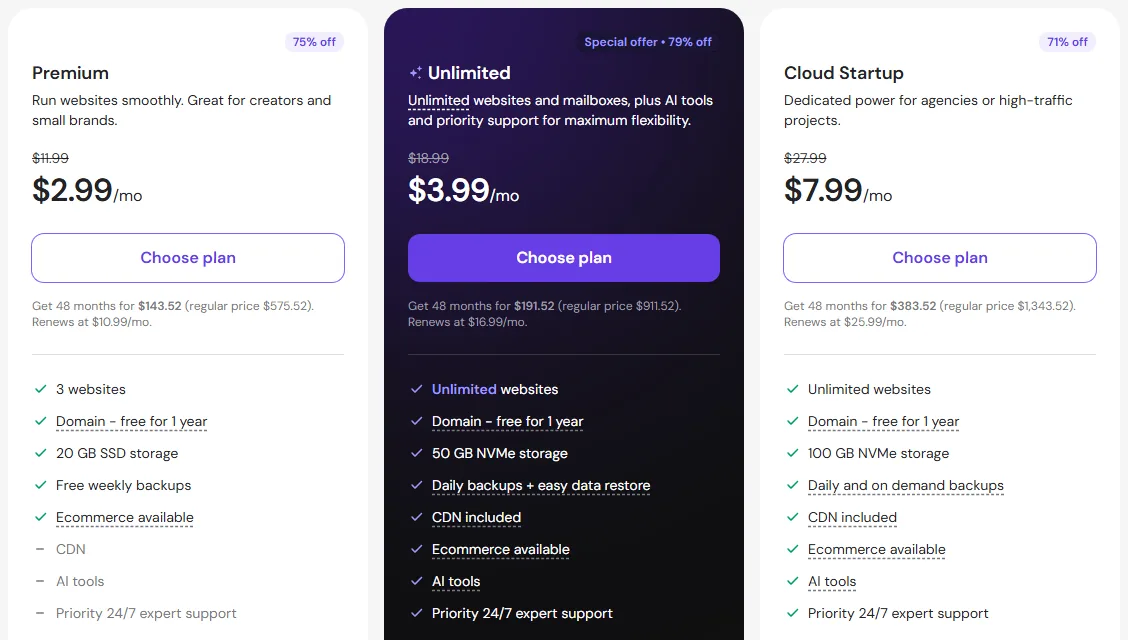
At Hostinger, for example, the step up from Premium ($2.99/month on a 48-month term, renewing at $10.99) is the Unlimited plan: from $3.99/month (48-month term), renewing at $16.99/month, with unlimited websites, 50 GB NVMe storage and daily backups. It fits when the limits bite only now and then. If you’re already on a host’s top shared tier, skip this step.
Option 2: Cloud hosting
“Cloud hosting” means different things at different hosts, but at the budget end it usually means a managed plan with far more guaranteed resources than shared, the same simple dashboard, and no server work for you. It’s the natural next step for a growing WordPress site or a small store that wants more power without learning Linux.
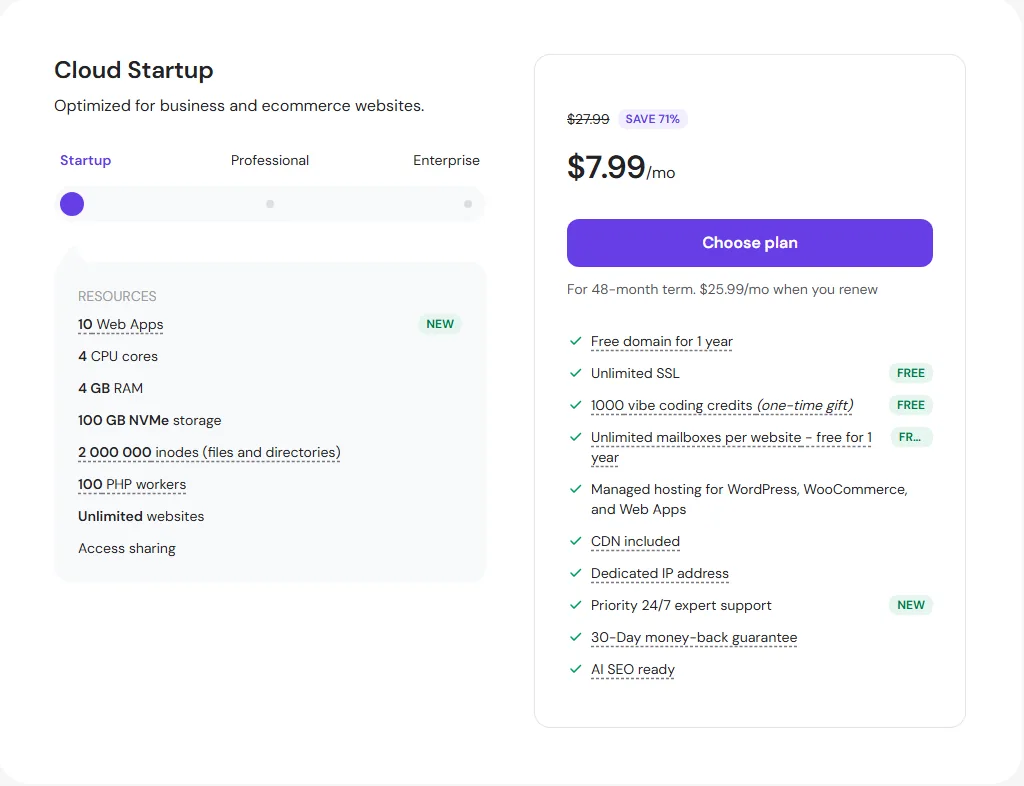
Hostinger’s Cloud Startup starts at $7.99/month on a 48-month term and renews at $25.99/month. It lists 4 CPU cores, 4 GB RAM, 100 GB NVMe storage, 2,000,000 inodes, 100 PHP workers and a dedicated IP, and Hostinger offers free website migration with it. Read more in our guide to what cloud hosting is.
Option 3: Managed WordPress hosting
If your site is WordPress and it earns money, managed WordPress hosting buys you time more than raw power. The host tunes the server for WordPress, handles caching, keeps daily backups and gives you staging to test changes. It costs more per site than shared, so it suits one or a few important sites rather than a pile of hobby projects.
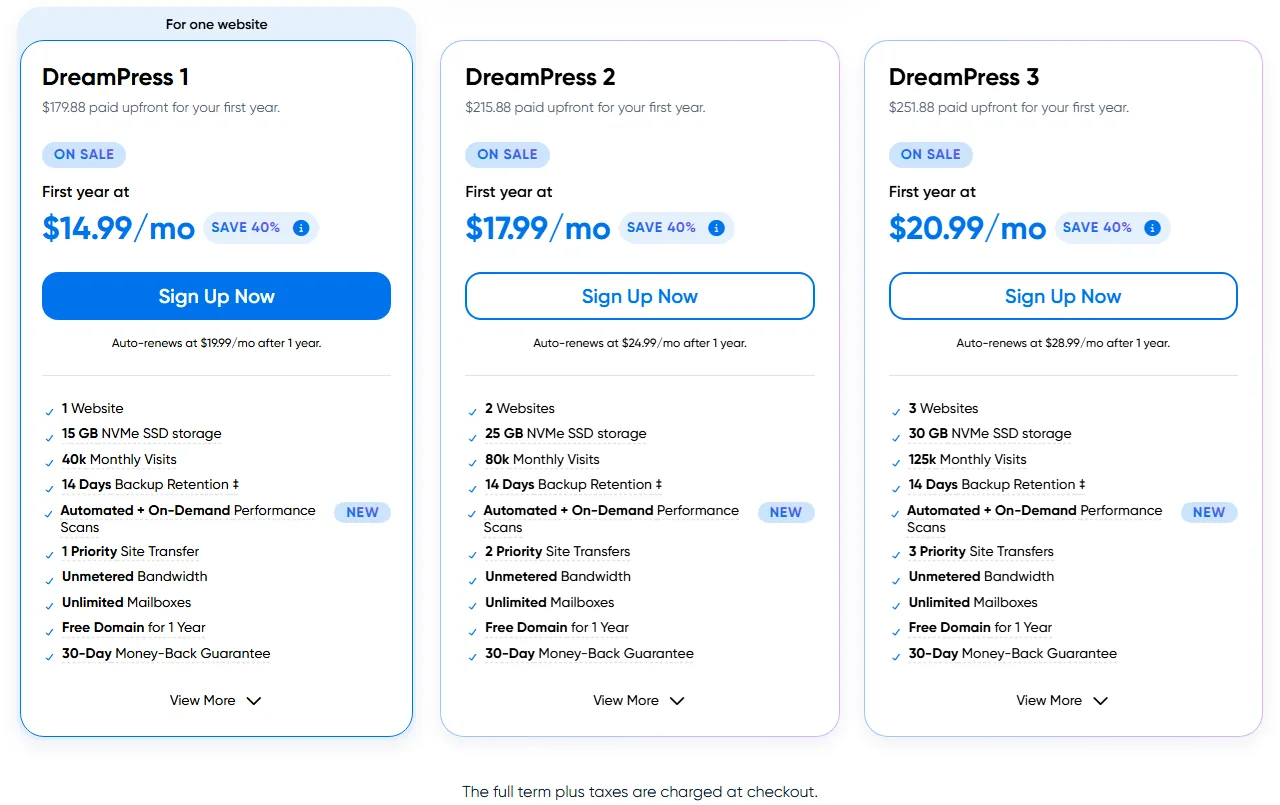
DreamHost’s DreamPress is a good example. DreamPress 1 is $14.99/month for the first year (1-year term) and renews at $19.99/month. It covers 1 website, 15 GB NVMe storage and about 40,000 monthly visits, with 14 days of backups, and DreamHost includes a professional migration. Watch that visit allowance: if you’re already past it, look at the bigger DreamPress plans or option 4.
Option 4: Managed VPS or managed cloud (Cloudways)
This is where you get your own server resources, but someone else installs, patches and monitors the server. You choose how much RAM and CPU you want and scale up when you need to. It suits busy WordPress sites, WooCommerce stores and agencies hosting several client sites on one server.
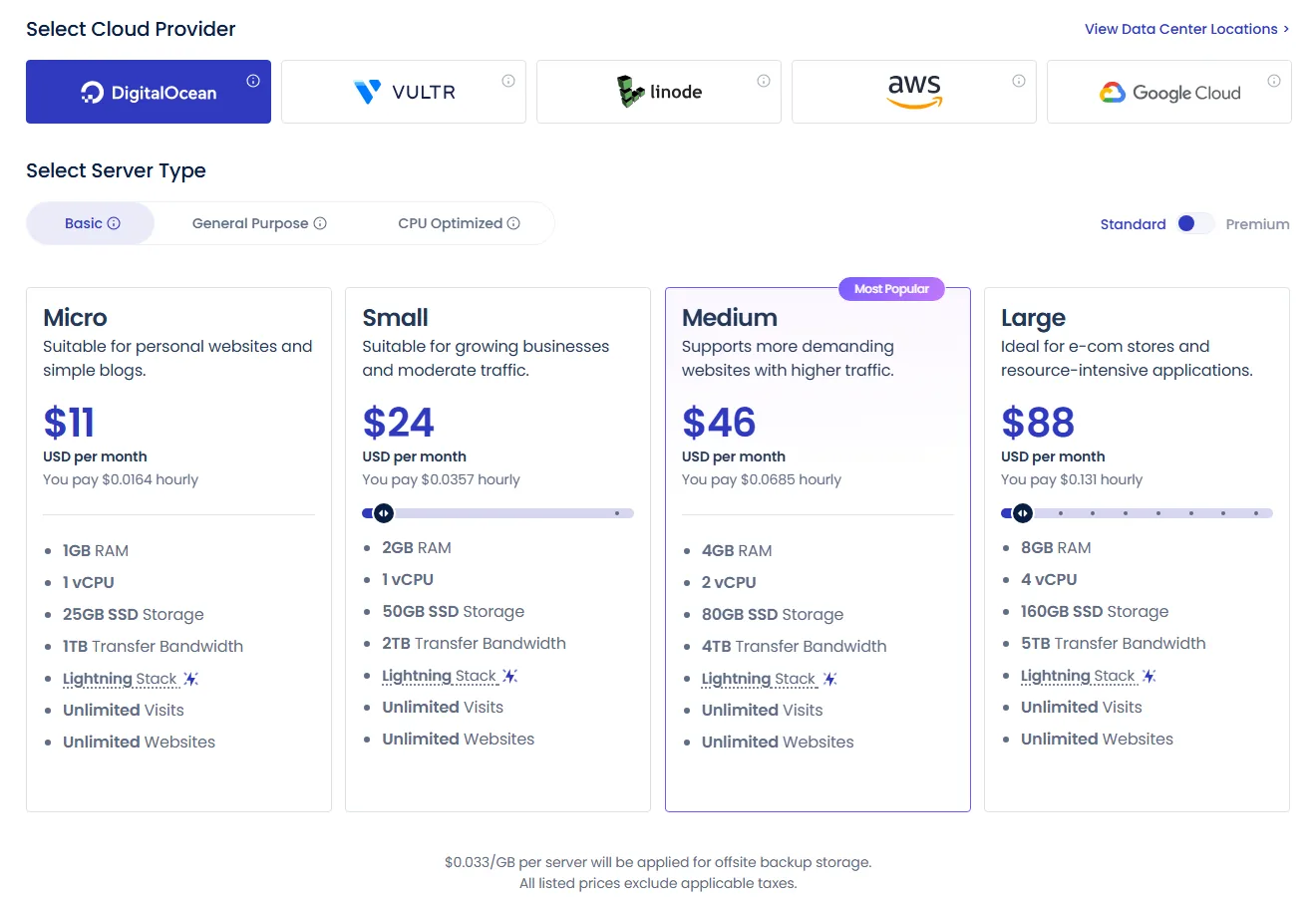
Cloudways runs managed servers on top of DigitalOcean, Vultr, Linode, AWS and Google Cloud. Its cheapest server is $11/month on DigitalOcean Standard (1 GB RAM, 1 vCPU, 25 GB storage, 1 TB bandwidth), billed monthly with no long contract, and there’s a free trial. One thing to know: there’s no email hosting included and no cPanel, so it suits people comfortable with a slightly more technical dashboard.
Option 5: An unmanaged VPS
An unmanaged VPS is the cheapest way to get lots of power and full root access, and the most work. You install the web server, PHP, the database, the firewall and the updates, and you fix it when it breaks at midnight. It’s a great fit for developers and for anything shared hosting won’t run. For a typical business site with no one technical on hand, it’s usually the wrong step.
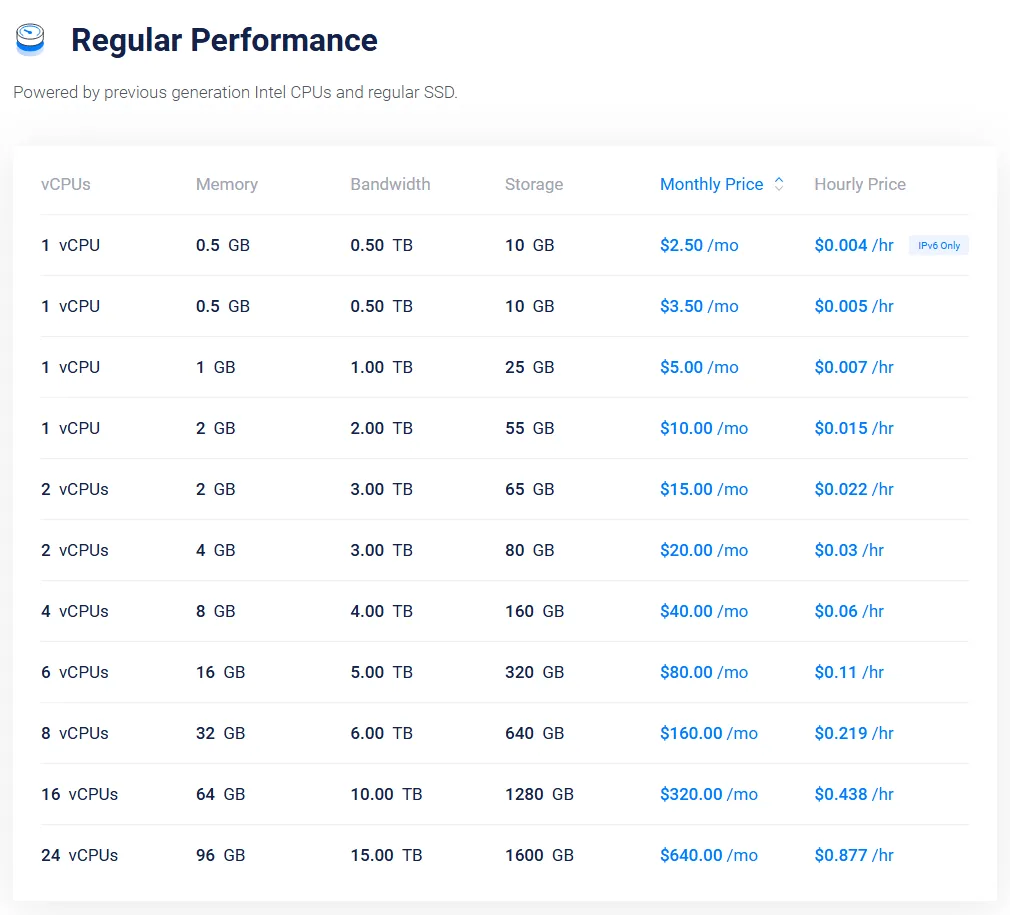
Vultr is a solid example. Its Regular Performance Cloud Compute servers start at $5/month for 1 vCPU, 1 GB RAM, 25 GB storage and 1 TB bandwidth, billed by the hour. There are smaller $2.50 and $3.50 plans with 0.5 GB RAM, but that’s tight for WordPress, and the $2.50 one is IPv6 only. Not sure which side you’re on? Our managed vs. unmanaged hosting comparison walks through the trade-offs, and shared hosting vs. VPS hosting compares the two head to head.
How to move off shared hosting with little downtime
If you’re upgrading within the same host, the host usually does it for you and there’s nothing to move. Switching hosts takes a bit of planning, but done in this order your visitors shouldn’t notice:
- Ask about free migration. Hostinger, DreamPress and Cloudways all offer migration help, so let them do the heavy lifting if you can.
- Lower your DNS TTL a day or two early. Set it to about 5 minutes (300 seconds) so the switch spreads quickly later.
- Take a full backup of files and the database, and keep a copy off both servers.
- Copy the site and test it on the new host using a temporary URL or your computer’s hosts file, before anyone else sees it.
- Freeze changes (no new posts, orders paused if you can) for the last sync, so nothing gets lost between servers.
- Point your DNS to the new server, then check SSL, forms, checkout and email (MX records) once it resolves.
- Keep the old plan for a week before you cancel, in case something was missed.
For a hands-on walkthrough of one of these moves, see our guide to migrating a WordPress site to Cloudways step by step. Most of the steps apply to any new host.
FAQ
How many visitors can shared hosting handle?
There’s no fixed number, because it depends on how heavy each visit is. A cached blog can serve many thousands of visitors a day on a good shared plan, while a store with logged-in shoppers can hit limits with far fewer. Watch your resource graphs rather than a visitor count.
What does “508 Resource Limit Is Reached” mean?
It means your account hit one of its limits, most often entry processes (too many PHP requests at once), so the server turned new visitors away. Occasional 508s during a spike can be fixed with caching; regular ones mean the plan is too small.
Should I go from shared hosting straight to a VPS?
Only if you need root access or you’re comfortable running a server. Most site owners do better with a bigger shared plan, cloud hosting or a managed VPS first, because the host still handles security updates and server problems.
Will upgrading my hosting make my site faster?
It will if the server was the bottleneck, which shows up as slow server response and limit faults at busy times. It won’t fix huge images, too many plugins or a missing cache, so clean those up first.
Is it safe to move hosts without losing SEO?
Yes. As long as your domain, URLs and content stay the same and the site isn’t down for long, changing hosts doesn’t hurt rankings. A faster host can even help.
The short version: don’t leave shared hosting because a blog post told you a visitor number. Leave it when your own graphs, error logs and plans say you’ve outgrown it, and take the smallest step up that solves the problem.