Your hosting welcome email says “log in to cPanel”, and suddenly you are staring at a page with dozens of icons. Don’t worry. You only need a handful of them, and once you know where things live, cPanel is one of the easiest ways to run a website.
This guide walks you through it the way a friend would: what cPanel is, how it differs from WHM, a tour of every main section, the jobs you will actually do (with steps), what the license costs today, and why so many hosts have quietly moved to their own panels.
Quick answer: cPanel is a web-based control panel for a Linux hosting account. From your browser you can upload files, add domains, create email addresses and databases, turn on free SSL, install WordPress and make backups, all without typing a single server command. On shared hosting the host pays for the license, so it costs you nothing extra.
Key takeaways
- cPanel manages one hosting account. WHM, its big brother, manages the whole server.
- Log in through your host’s dashboard, or at yourdomain.com:2083.
- The parts beginners use most: File Manager, Email Accounts, Domains, SSL/TLS Status, the WordPress installer and Backup.
- License prices have climbed every year since cPanel switched to per-account pricing, which is why hosts like Hostinger and SiteGround built their own panels.
- Our verdict: cPanel is a safe, familiar choice for beginners, but a good host matters more than which panel it uses.
What is cPanel?
cPanel is a control panel that sits on top of a Linux web server and gives you a point-and-click way to manage your hosting account. Each icon is a small tool: one manages files, another creates mailboxes, another sets up databases. Behind the scenes cPanel runs the server commands for you and keeps you fenced inside your own account.
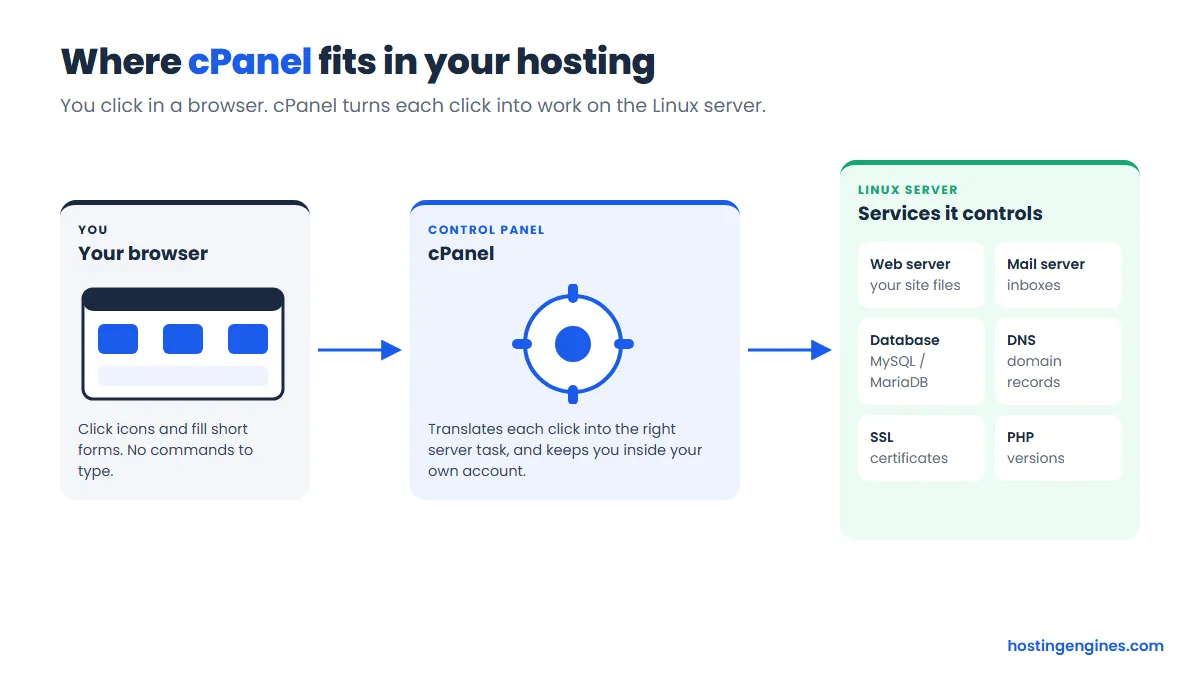
Think of the server as a car engine and cPanel as the dashboard. You never touch the engine. You press buttons, and the right thing happens underneath.
A few basics worth knowing before you log in:
- It runs on Linux only. cPanel’s system requirements list AlmaLinux, CloudLinux, Rocky Linux and Ubuntu. If you need a Windows server, you will get a different panel, usually Plesk.
- Your host chooses it, not you. On shared hosting you get whatever panel the host uses. On a VPS or dedicated server you can often pick cPanel, another panel, or none.
- It comes with WHM. The same software has a server-level side called WHM. More on that below.
- It has two looks. Jupiter is the classic interface most hosts show. Meridian is a newer, task-based layout you can switch to on recent versions.
What does cPanel look like when you log in?
The classic cPanel home screen has four parts: a search bar at the top, tool groups in the middle, a side panel with your account stats on the right, and a slim menu on the left. Hosts can recolor it and hide tools, so yours may look a little different, but the layout is the same.
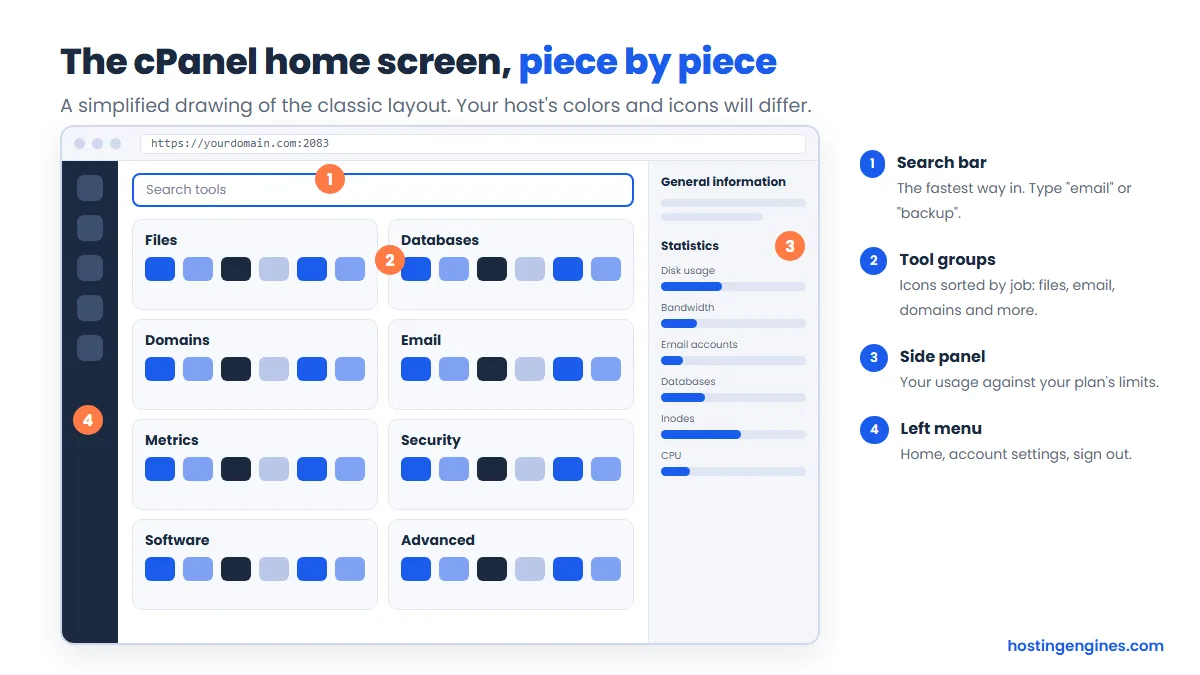
Two habits will save you a lot of scrolling. First, use the search bar. Typing “email” or “backup” is faster than hunting through groups. Second, glance at the statistics panel now and then. It shows your disk space, inodes (the number of files), email accounts and databases against your plan’s limits, and it is the first place to look when something stops working.
Jupiter or Meridian: which one will you see?
Jupiter is the long-standing default, and almost every tutorial online, including this one, uses its names. Meridian arrived in cPanel & WHM version 138 as an opt-in alternative. cPanel’s release notes describe it as goal-based, with six hubs: Websites, Email, Files, Databases, Security and Performance. Jupiter stays fully supported, and you can switch back any time.
| Jupiter | Meridian | |
|---|---|---|
| Layout | Icon groups sorted by tool type | Six hubs sorted by goal |
| Status | The default on most hosts | Opt-in, on recent versions only |
| Best for | Following tutorials, finding a specific tool | Beginners who think in tasks, not tool names |
| Your data | Same account, same files | Same account, same files |
Whether you can use Meridian depends on your host’s cPanel version and settings. Your sites, email and databases are identical either way. See cPanel’s Meridian release notes for the details.
How do you log in to cPanel?
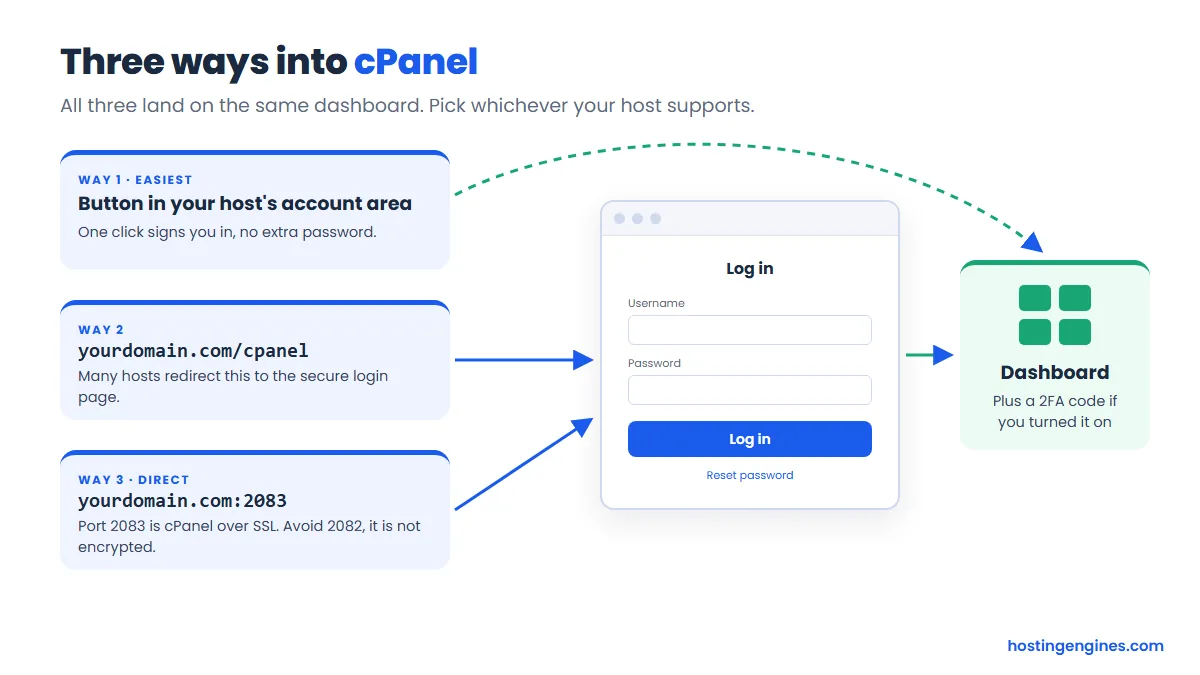
The easiest way is the cPanel button in your host’s account area, which signs you in with one click. You can also open yourdomain.com:2083 (or yourdomain.com/cpanel on many hosts) and sign in with the cPanel username and password from your welcome email.
- Find your welcome email from the host. It lists your cPanel username, password and login address.
- Open the login page. Use the button in your host’s dashboard, or type
https://yourdomain.com:2083. - Enter your username and password, then click Log in.
- If you turned on two-factor authentication, type the six-digit code from your authenticator app.
- Bookmark the page you land on so next time takes seconds.
Brand-new domain not working yet? DNS changes can take a while to spread. Use the server address or temporary link in your welcome email until your domain points at the host. Our guide to what DNS is and how it works explains why that delay happens.
Here are the ports cPanel’s own firewall documentation lists. Always use the SSL ones, because they encrypt your password on the way in.
| Service | Secure port (use this) | Non-secure port |
|---|---|---|
| cPanel | 2083 | 2082 |
| WHM | 2087 | 2086 |
| Webmail | 2096 | 2095 |
If a login page warns that your connection is not private, stop and check the address before you type a password. A typo in the domain is a common way people end up on a fake login page.
cPanel vs WHM: what is the difference?
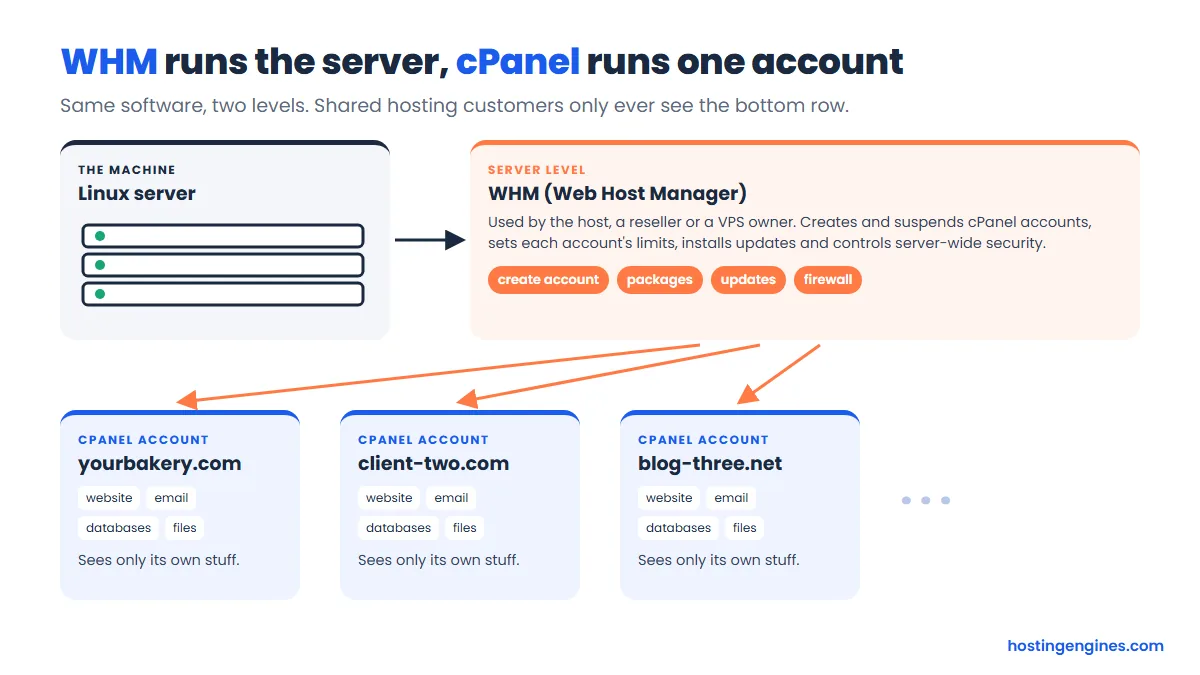
cPanel manages a single hosting account: its websites, email, files and databases. WHM (Web Host Manager) manages the whole server and creates those cPanel accounts. If you are on shared hosting you only ever see cPanel. Resellers, VPS owners and dedicated server owners use both.
| cPanel | WHM | |
|---|---|---|
| Controls | One account | The whole server and every account on it |
| Typical jobs | Upload files, create email, add domains, install WordPress | Create or suspend accounts, set packages and limits, run updates, manage the firewall |
| Who uses it | Everyone with a cPanel host | Hosts, resellers, VPS and dedicated server owners |
| Login port | 2083 | 2087 |
A useful way to picture it: WHM is the landlord’s office, cPanel is the key to one apartment. Reseller plans give you a mini landlord’s office, so you can sell hosting under your own name. That is what reseller hosting is.
A tour of cPanel’s main sections
Most cPanel home screens group their tools into the same sections. Here is what lives in each one, which tools matter, and what you can safely ignore at first.
Domains: names, subdomains and DNS
The Domains section connects web addresses to folders on your account. You add extra domains and subdomains here, set up redirects, and edit DNS records in the Zone Editor.
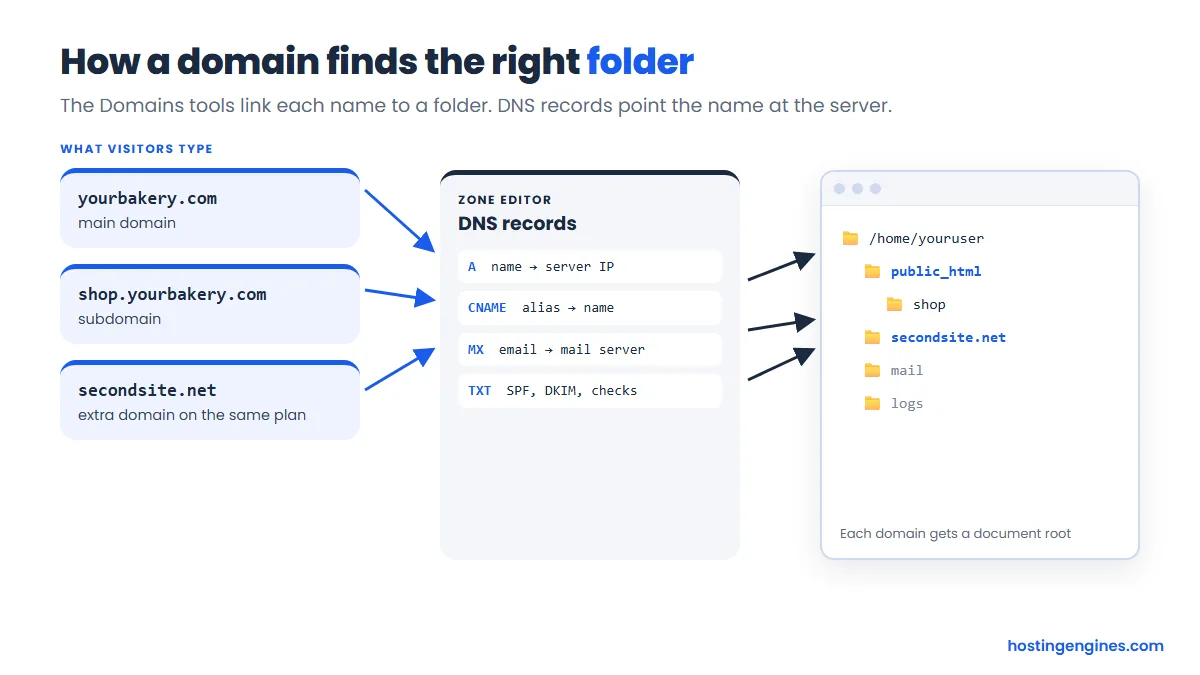
- Domains: add another website to the same plan (if your plan allows more than one) or create a subdomain like shop.yourdomain.com. Each gets its own folder, called a document root.
- Redirects: send an old address to a new one with a permanent (301) redirect.
- Zone Editor: edit A, CNAME, MX and TXT records. You will come here to verify a domain with Google, connect an outside email service, or point a subdomain somewhere else.
Only change DNS records when you know why. A wrong MX record, for example, can quietly stop your email.
Files: File Manager, FTP and disk usage
File Manager is a file browser in your browser tab. It is the tool most beginners use first: upload a zip, extract it, edit a file, or fix permissions without installing anything.
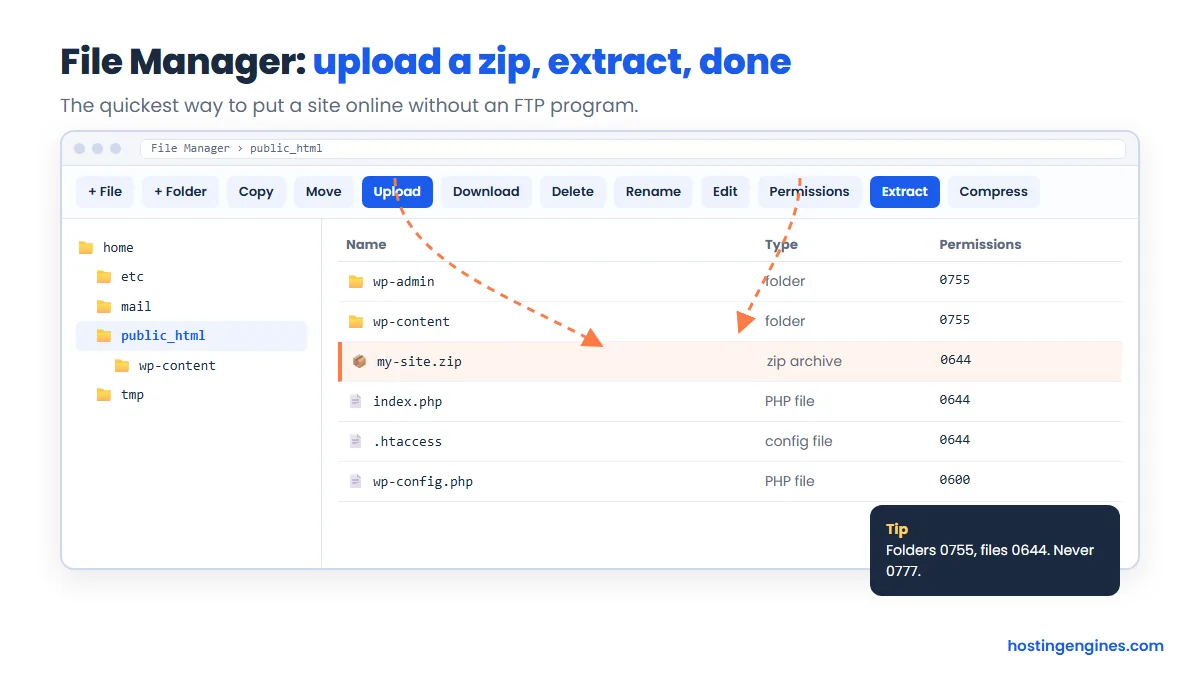
- public_html is your main site’s folder. Whatever sits in it is what visitors see at your domain.
- FTP Accounts let you use a desktop program such as FileZilla. Handy for large uploads, or to give a developer access to one folder only.
- Disk Usage shows which folders eat your space. Old backups and log files are usual suspects.
- Directory Privacy puts a password on a folder, useful for a staging copy.
Permissions matter. Folders normally use 755 and files 644. Setting anything to 777 opens it to the world and is never a fix, even when a forum post tells you so.
Databases: MySQL, users and phpMyAdmin
WordPress and most other site software keep their content in a MySQL or MariaDB database. The Databases section lets you create a database, create a user, connect the two with the right privileges, and open phpMyAdmin to look at the tables.
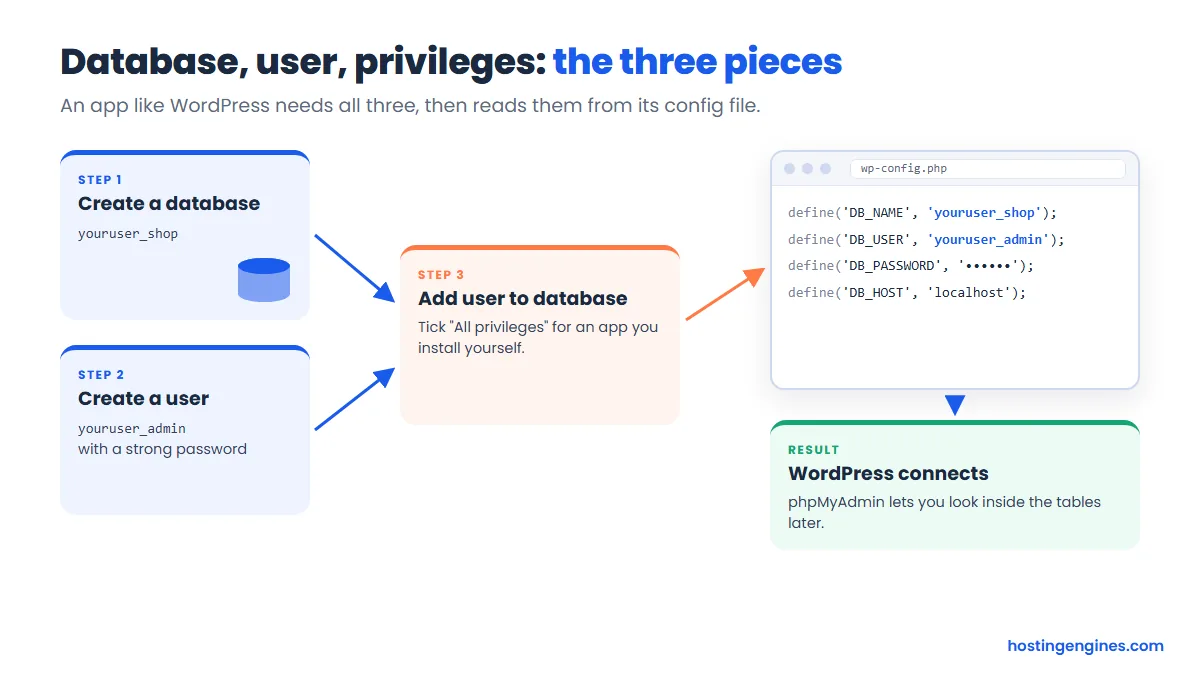
If you install WordPress with an app installer, all of this happens for you. You only come here when you install software by hand, move a site, or need to fix something inside the database. Treat phpMyAdmin with care: there is no undo button, so export a copy before you edit anything.
Email: accounts, forwarders and webmail
Email is one of cPanel’s best perks. You can create addresses on your own domain, such as [email protected], and read them in webmail, on your phone or in a desktop app.
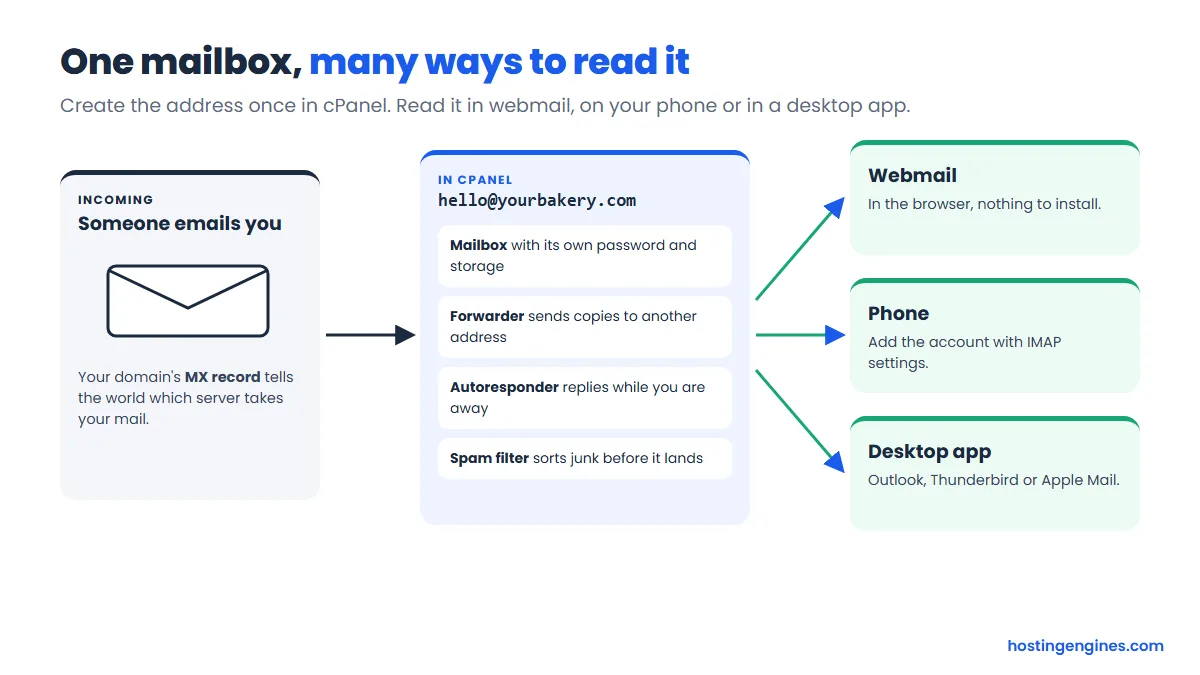
- Email Accounts: create a mailbox, set its storage, and get the settings for your phone or mail app.
- Forwarders: send copies of mail for one address to another inbox.
- Autoresponders: an out-of-office reply.
- Spam Filters: how aggressively junk gets sorted out.
- Email Deliverability: checks that your SPF and DKIM records are right, so your mail lands in inboxes rather than spam folders.
Shared hosting mail is fine for a small business. It is not built for newsletters to thousands of people. Hosts cap how many messages you can send per hour, so use a newsletter service for bulk mail.
Security: SSL/TLS, AutoSSL and two-factor login
The Security section protects both your visitors and your account. The tool to check first is SSL/TLS Status, which shows whether each domain has a valid certificate.
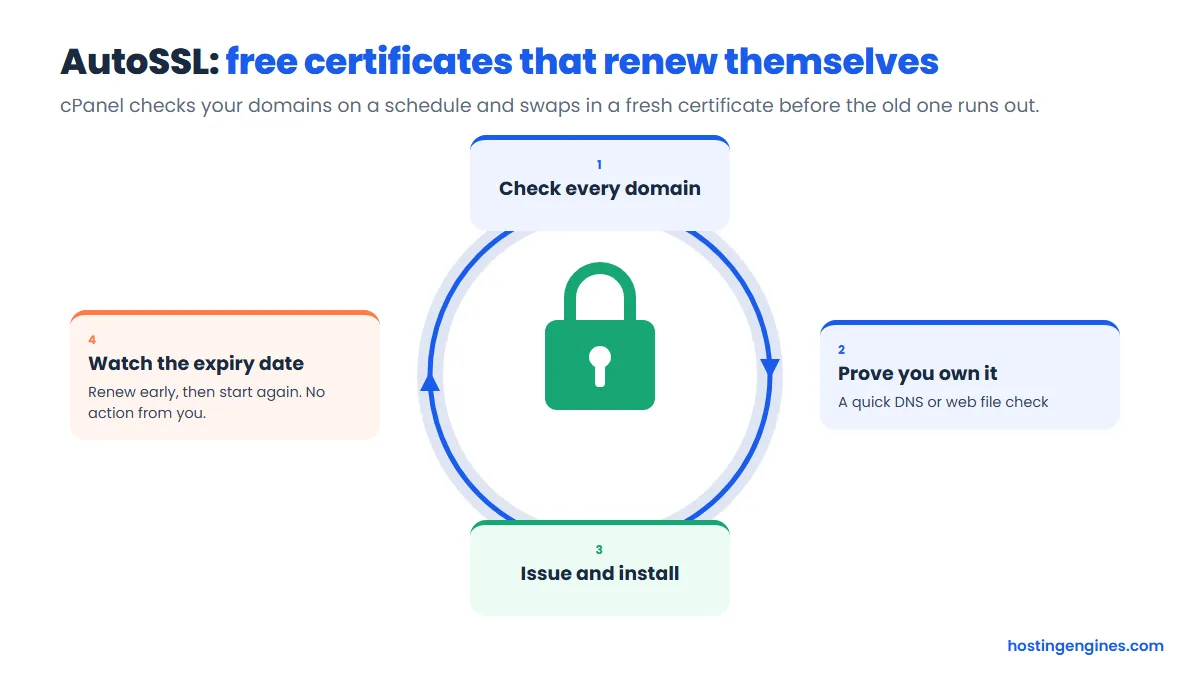
Most cPanel hosts run AutoSSL, which issues free domain-validated certificates and renews them on its own. cPanel’s documentation names Let’s Encrypt as the default provider. If a domain shows a red warning, the usual cause is DNS that does not point at the server yet. Fix that, then click Run AutoSSL. For what the padlock actually protects, read our guide to SSL/TLS certificates.
- Two-Factor Authentication: adds a code from an app on your phone to every login. Turn this on today.
- IP Blocker: block an address that keeps hammering your site.
- Hotlink Protection: stop other sites from embedding your images and using your bandwidth.
- ModSecurity: a web application firewall. Leave it on unless your host tells you otherwise.
Software: Softaculous, WP Toolkit and PHP versions
This section is where you install apps and choose how your site’s code runs. Two installers are common: Softaculous, a separate product many hosts add, and WP Toolkit, which cPanel’s pricing page now lists as included with every license.
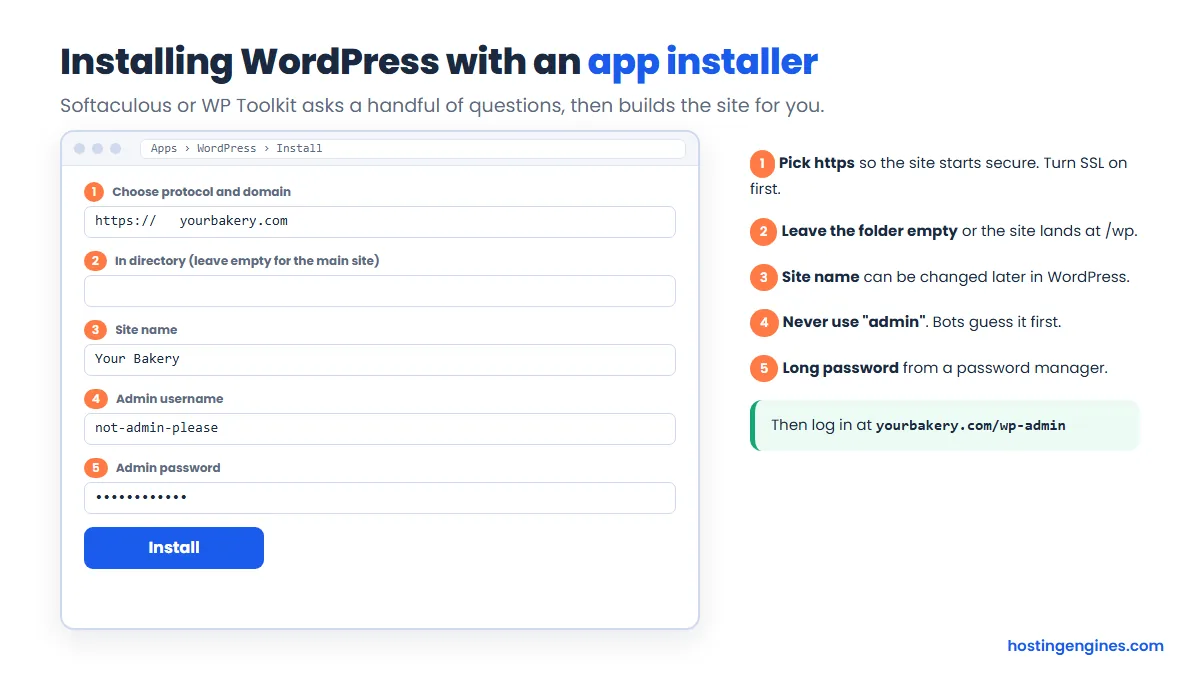
- Softaculous: a one-form installer for WordPress and many other apps, plus one-click updates and backups for what it installed.
- WP Toolkit: a WordPress manager that installs sites, makes staging copies, and handles updates and security settings.
- MultiPHP Manager or Select PHP Version: pick which PHP version each site uses. Newer, supported versions are faster and safer, but check that your theme and plugins support them first.
Not every host offers both installers. If you see neither, your host may have its own WordPress tool somewhere else in the account area.
Backups: full and partial
cPanel’s Backup tool makes two kinds of copies. A full backup packs the whole account into one file. Partial backups save one piece at a time: your home folder, a single database, or your email filters.
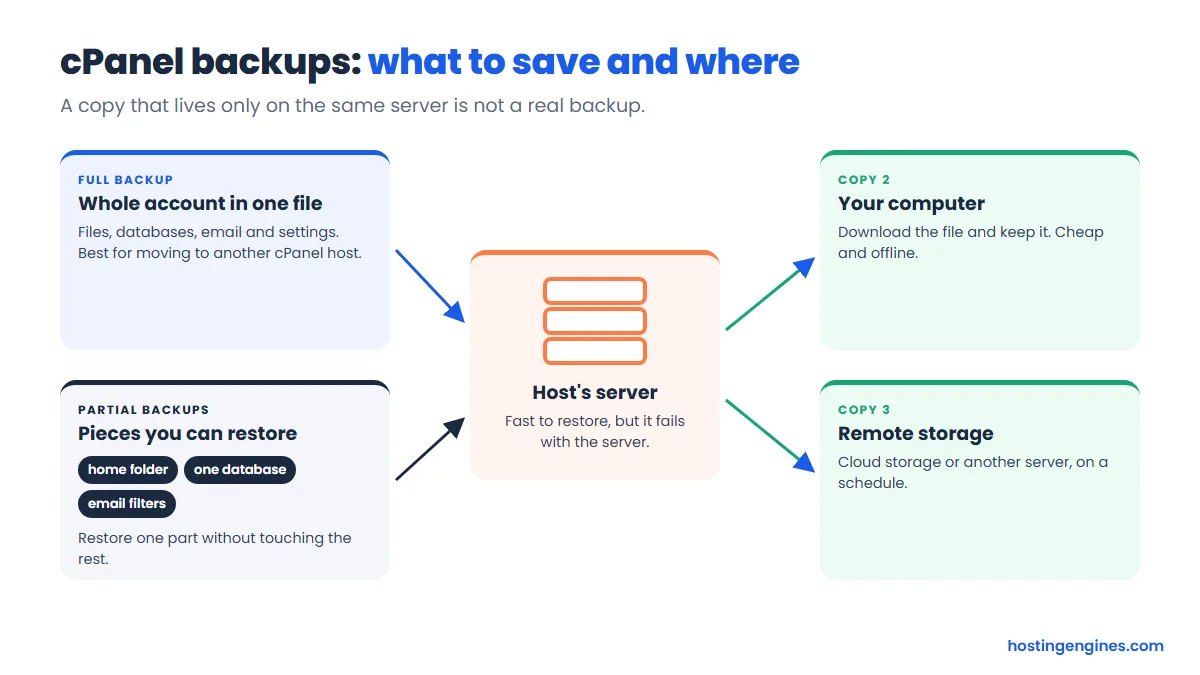
Here is the catch most people learn the hard way: you can restore partial backups yourself, but on most setups a full backup is restored by the host or through WHM. Full backups are great for moving to another cPanel host. For everyday safety, partial backups are what you will use.
And a backup kept only on the same server is not really a backup. If the server dies, it dies too. Download a copy, or send copies to remote storage on a schedule. Many hosts sell automatic off-server backups as an add-on, and it is worth the small cost for a site you care about.
Metrics: visitors, errors and resource usage
The Metrics section tells you who visits and what your site uses. It is your first stop when the site feels slow or something breaks.
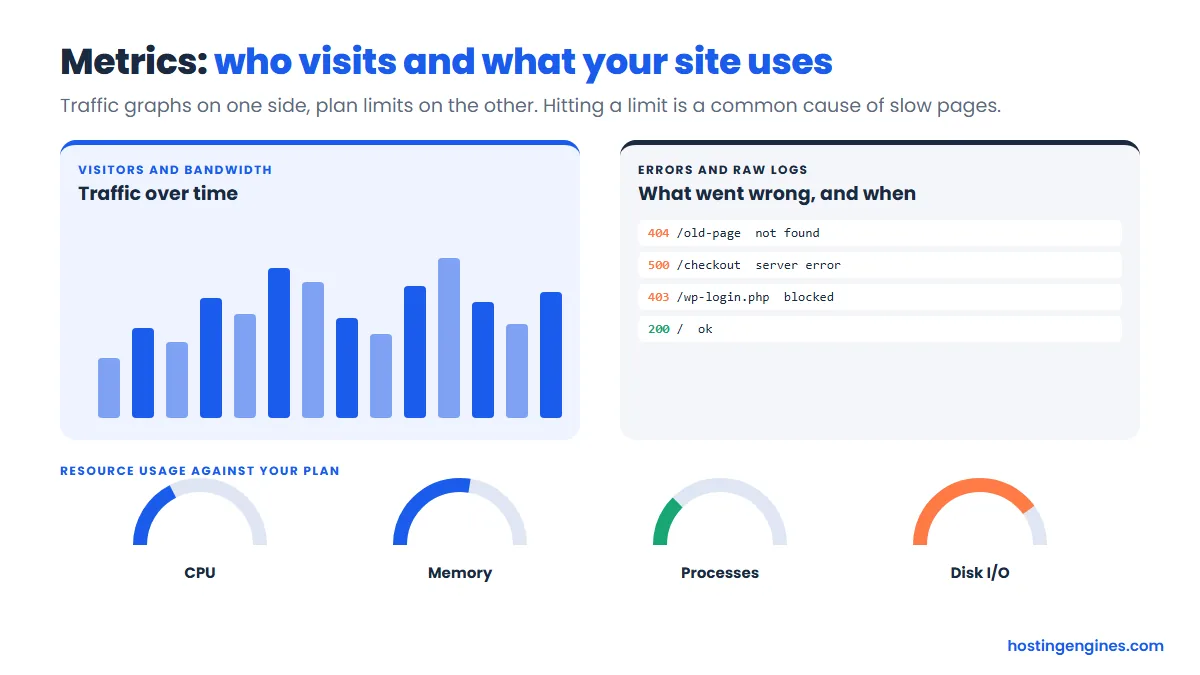
- Visitors and Bandwidth: traffic over time, built from your server logs.
- Errors: the latest error messages. A sudden run of 500 errors usually means a broken plugin or a bad code change.
- Raw Access: download the full logs if you or a developer need to dig deeper.
- Resource Usage: on hosts that run CloudLinux, this shows whether you hit your plan’s CPU, memory or process limits. If you keep hitting them, the plan is too small for the site.
Common cPanel tasks, step by step
These are the jobs people log in to do. Button names shift a little between hosts and between Jupiter and Meridian, but the flow stays the same. When in doubt, type the tool name into the search bar.
Install WordPress
- Make sure the domain already shows a valid certificate under SSL/TLS Status.
- Open Softaculous or WP Toolkit from the Software section (or search “WordPress”).
- Click Install and choose https plus your domain.
- Leave the directory box empty so the site sits at the main address.
- Enter a site name, an admin username that is not “admin”, a long password and your email.
- Click Install, wait a minute, then log in at yourdomain.com/wp-admin.
Moving an existing site instead of starting fresh? Follow our step-by-step guide to migrating a WordPress site.
Create a business email address
- Open Email Accounts and click Create.
- Pick the domain, type the name before the @, and set a strong password.
- Choose the storage space, or leave the default.
- Click Create, then Check Email to open webmail and send yourself a test.
- Use Connect Devices to get the settings for your phone or mail app.
Add another domain or a subdomain
- Point the domain at your host first, either with the host’s nameservers or an A record.
- Open Domains and click Create a New Domain.
- Type the domain or subdomain. cPanel suggests a folder for it. Keep it unless you have a reason not to.
- Click Submit, then upload a site to that folder or install WordPress on it.
- Check SSL/TLS Status after a few hours so AutoSSL covers the new name.
Upload a website with File Manager
- Zip your site’s files on your computer.
- Open File Manager and go into public_html (or the new domain’s folder).
- Click Upload and pick the zip.
- Back in the folder, select the zip and click Extract.
- Delete the zip afterwards so nobody can download it, then visit your domain.
Create a database for an app
- Open the MySQL Database Wizard.
- Name the database. cPanel adds your username as a prefix.
- Create a database user with a generated password, and copy the password somewhere safe.
- Tick All Privileges and finish the wizard.
- Enter the database name, user and password in your app’s setup screen or config file. The host is usually localhost.
Make and download a backup
- Open Backup (or Backup Wizard for a guided version).
- Under partial backups, download your home directory and each database.
- For a move to another host, click Download a Full Account Backup and choose your home directory as the destination.
- Wait for the email that says it is ready, download the file, then delete it from the server so it does not eat your disk space.
Turn on two-factor authentication
- Install an authenticator app on your phone.
- In cPanel, open Two-Factor Authentication under Security and click Set Up Two-Factor Authentication.
- Scan the QR code with the app.
- Type the code the app shows and click Configure.
- Save the recovery details in your password manager. Losing your phone should not lock you out.
Change your PHP version
- Check that your theme and plugins support the newer version. Most list this on their pages.
- Open MultiPHP Manager (or Select PHP Version on CloudLinux hosts).
- Tick the domain, choose the version and click Apply.
- Load your site and its admin area. If something breaks, switch back and update the plugin that failed.
How much does cPanel cost?
On shared hosting cPanel costs you nothing extra, because the host pays the license and builds it into the plan price. On a VPS or dedicated server you usually pay for it yourself. cPanel’s own pricing page starts at $29.99 a month for one account and runs to $69.99 a month for up to 100 accounts, before VAT.
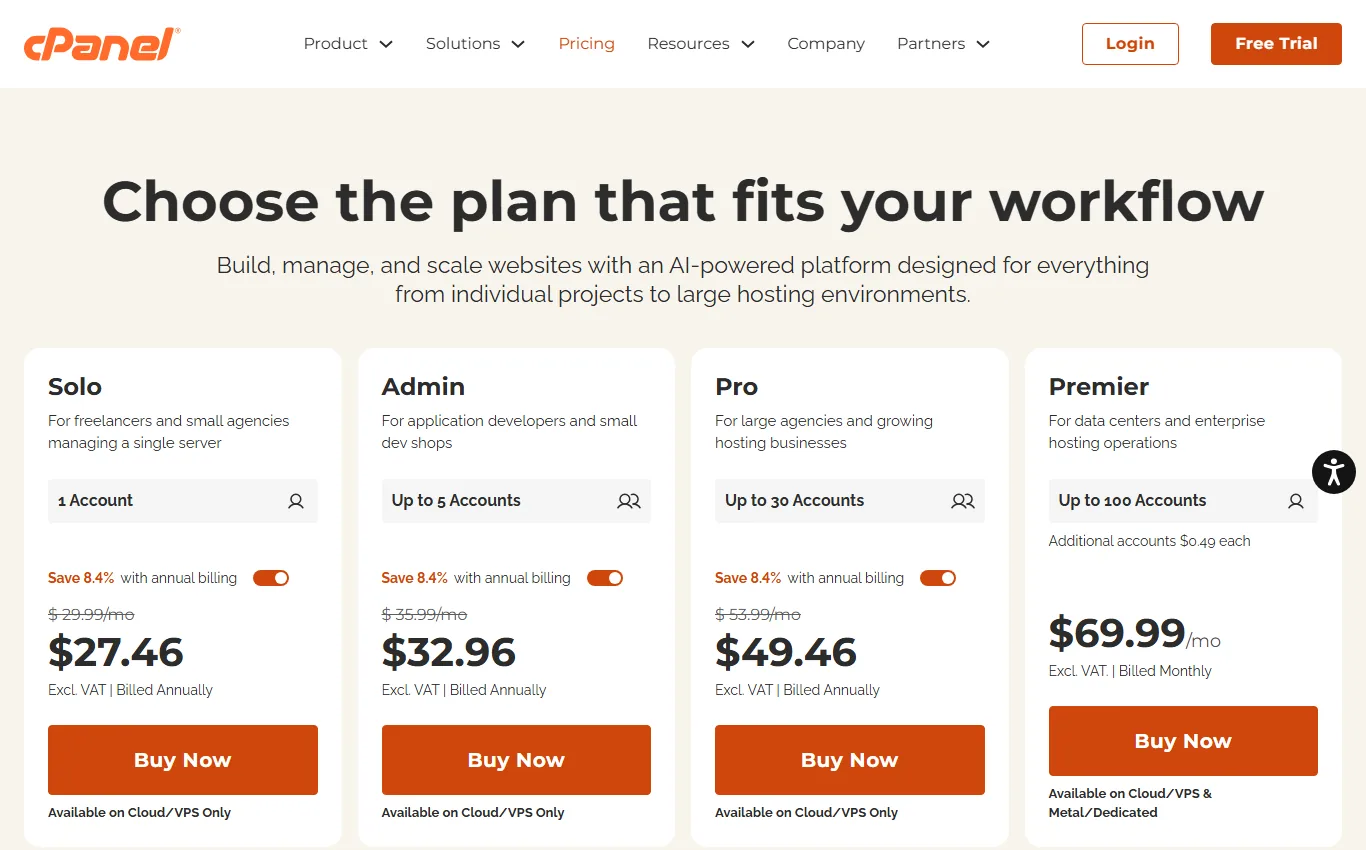
| License | Accounts included | Monthly price | Price billed yearly | Where it runs |
|---|---|---|---|---|
| Solo | 1 | $29.99 | $27.46 a month | Cloud or VPS only |
| Admin | Up to 5 | $35.99 | $32.96 a month | Cloud or VPS only |
| Pro | Up to 30 | $53.99 | $49.46 a month | Cloud or VPS only |
| Premier | Up to 100, then $0.49 per extra account | $69.99 | Monthly billing only | Cloud, VPS or dedicated |
Two things to watch. First, cPanel’s pricing page says license prices will be adjusted again for new orders and all renewals before the end of 2026, so check the official pricing page before you budget. Second, many VPS hosts sell cPanel as an add-on at their own price, and some include it in managed plans.
| Your hosting | Who pays for cPanel | What to check |
|---|---|---|
| Shared hosting | The host | Nothing. If the plan says cPanel, it is included. |
| Reseller hosting | The host | How many cPanel accounts you may create. |
| Managed VPS | Often the host | Look for “cPanel included” on the plan, and the account limit. |
| Unmanaged VPS or dedicated | You | Add the license to the monthly cost before comparing plans. |
That last row is where people get caught out. A cheap VPS can double in price once the panel license lands on top. Our guide to VPS hosting explains what else you take on when you leave shared hosting.
Why cPanel prices keep rising, and why hosts left
In 2019 cPanel stopped selling flat per-server licenses and started charging by the number of accounts on a server. Prices have gone up nearly every year since. For shared hosts that pack hundreds of accounts onto one machine, that turned a small fixed cost into a big variable one.
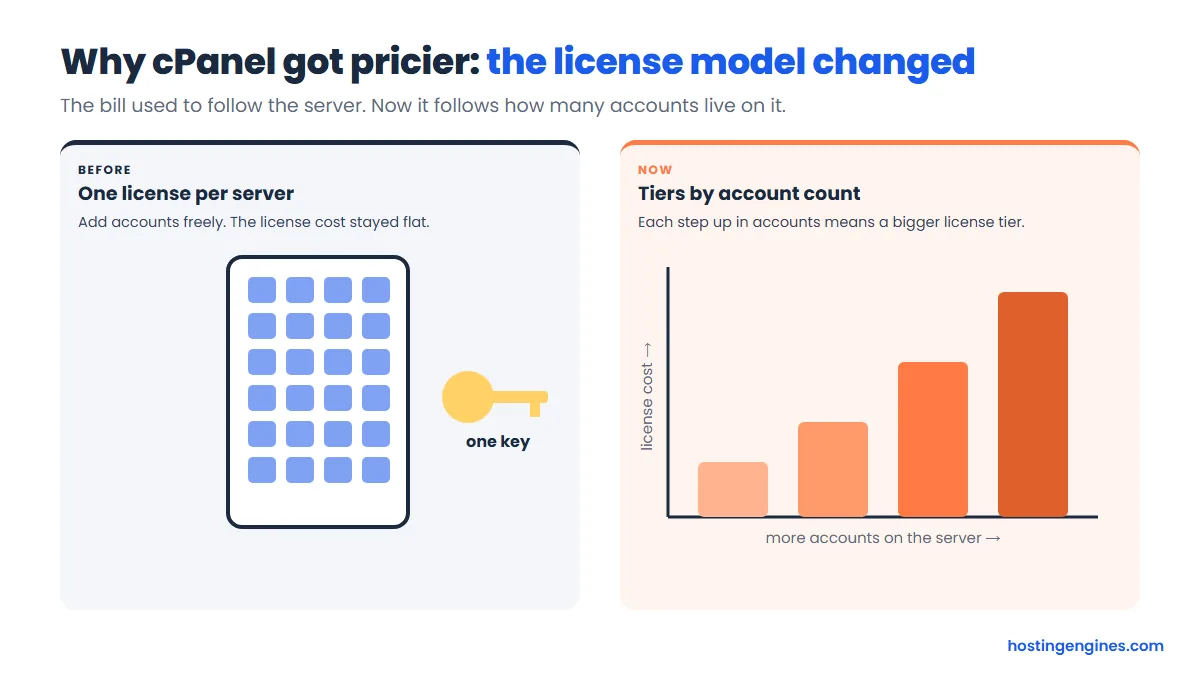
Before the change, as The Register reported at the time, a VPS license was $20 a month and a dedicated license $45 a month, each with unlimited accounts. Here is how the tiers have moved since:
| Tier | At the 2019 switch | 2025 | Now |
|---|---|---|---|
| Solo (1 account) | $15 | $26.99 | $29.99 |
| Admin (up to 5) | $20 | $32.99 | $35.99 |
| Pro (up to 30) | $30 | $46.99 | $53.99 |
| Premier (up to 100) | $45 | $65.99 | $69.99 |
| Each account over 100 | $0.20 | $0.45 | $0.49 |
Do the math for a busy shared server with 300 accounts. The old dedicated license was a flat $45. Today it is $69.99 plus 200 extra accounts at $0.49, about $168 a month for the same server. Multiply that by thousands of servers and you can see why hosts reacted.
Their responses fell into three groups:
- Build their own panel. Hostinger runs hPanel, SiteGround runs Site Tools, and ScalaHosting built SPanel. They control the design, the features and the cost.
- Switch to a cheaper third-party panel. DirectAdmin is the usual pick for budget shared hosting and small VPS plans. InterServer, for example, now runs its standard web hosting on DirectAdmin and sells cPanel as a separate plan.
- Keep cPanel and absorb or pass on the cost. Many hosts stayed because customers know cPanel and it makes migrations easy. Some raised plan prices, and VPS add-on prices went up too.
None of this changes what cPanel does for you on shared hosting. It mostly explains why the hosting market looks more varied than it did a few years ago, and why the hidden cost of a panel license matters on servers you rent yourself.
Which hosts still offer cPanel?
Plenty of well-known hosts still give you cPanel on shared plans, including Namecheap, HostGator, InMotion Hosting, ChemiCloud, GreenGeeks and GoDaddy’s Linux hosting. Others, such as Hostinger and SiteGround, use their own panels, and some offer cPanel only on certain plans.
| Host | Panel on shared plans | Good to know |
|---|---|---|
| Namecheap | cPanel | Softaculous included, free cPanel-to-cPanel migration. |
| HostGator | cPanel | Lists cPanel access on its web hosting plans. |
| InMotion Hosting | cPanel | VPS plans offer cPanel and WHM, Control Web Panel, or no panel. |
| ChemiCloud | cPanel | cPanel access on its shared plans. |
| GreenGeeks | cPanel | Advertises cPanel on its web hosting plans. |
| GoDaddy | cPanel (Linux plans) | Windows plans use Plesk instead. |
| ScalaHosting | SPanel by default | Sells separate cPanel hosting plans too. |
| InterServer | DirectAdmin on standard plans | Separate cPanel plans and cPanel VPS are available. |
| Hostinger | hPanel (its own) | cPanel is offered as a VPS template, not on shared plans. |
| SiteGround | Site Tools (its own) | No cPanel. |
A tip if you are switching hosts: moving from one cPanel host to another is the smoothest migration there is, because a full cPanel backup carries files, databases and email in one go. Many cPanel hosts will even do it for free.
cPanel alternatives you might meet
The main alternatives are Plesk, DirectAdmin and host-built panels such as hPanel, Site Tools and SPanel. They all handle the same everyday jobs: files, email, domains, databases, SSL and WordPress. The names and menus differ, but the skills carry over.
| Panel | Made by | Runs on | Where you will see it |
|---|---|---|---|
| cPanel | cPanel (WebPros) | Linux | Many shared, reseller and VPS hosts |
| Plesk | Plesk (WebPros) | Linux and Windows | Windows hosting and many VPS providers |
| DirectAdmin | JBMC Software | Linux | Budget shared hosting and small VPS plans |
| hPanel | Hostinger | Hostinger’s platform | Hostinger accounts only |
| Site Tools | SiteGround | SiteGround’s platform | SiteGround accounts only |
| SPanel | ScalaHosting | Linux | ScalaHosting plans |
Should cPanel decide which host you pick?
Usually not. A website only needs a working server, and cPanel is one convenient way to manage it. Choose the host for speed, support, price and renewal terms, then learn whatever panel comes with it. That said, cPanel does tip the scales in a few cases.
- You are a beginner on shared hosting: any host is fine. cPanel is nice because every tutorial uses it, but hPanel and Site Tools are just as easy.
- You plan to move hosts later, or manage sites for clients: cPanel helps. Full-account backups make cPanel-to-cPanel moves painless.
- You resell hosting: pick cPanel or a reseller plan with WHM. Your customers will expect it.
- You run a VPS on a budget: price the license first. DirectAdmin, a free panel, or no panel at all can save real money if you are comfortable with it.
- You only run WordPress: a managed WordPress host’s own dashboard often does more for WordPress than cPanel does.
cPanel FAQ
Is cPanel free?
Not for the host, but usually for you. On shared hosting the host pays the license and includes cPanel in your plan. On a VPS or dedicated server you normally pay a monthly license on top of the server price unless the plan says cPanel is included.
Is cPanel the same as web hosting?
No. Web hosting is the server space that stores your site and serves it to visitors. cPanel is the control panel you use to manage that space. Two hosts can sell the same kind of hosting with completely different panels.
Do I need cPanel to run WordPress?
No. WordPress needs PHP, a web server and a database, and any decent host provides those. cPanel just makes setup easier with an installer. Hosts with their own panels, and managed WordPress hosts, install WordPress for you in other ways.
Does cPanel work on Windows servers?
No. cPanel runs only on Linux distributions such as AlmaLinux, CloudLinux, Rocky Linux and Ubuntu. If you need Windows hosting, for example for ASP.NET apps, look for a host that offers Plesk on Windows.
Is cPanel secure?
It is a mature, widely used product that gets regular updates, but your account is only as safe as your login. Use a long unique password, turn on two-factor authentication, keep WordPress and plugins updated, and keep at least one backup away from the server.
I forgot my cPanel password. What now?
Use the reset link on the login page if your host turned it on, or change the password from your host’s account area, which is usually quickest. Avoid repeated guesses, because too many failed logins can block your IP address for a while.
Can I use cPanel on my own server?
Yes. You buy a license from cPanel or from your server provider and install it on a fresh supported Linux server. You then manage the server in WHM and create cPanel accounts for each site. cPanel offers a free trial if you want to test it first.
The bottom line
cPanel is the friendly dashboard behind a large share of hosting accounts. Learn five tools, File Manager, Email Accounts, Domains, SSL/TLS Status and Backup, and you can run a small site comfortably. Turn on two-factor login and download a backup on day one.
Our verdict: it is a great reason to feel at home on a new host, but not a reason on its own to choose one. On shared hosting it is free to you. On a VPS, count the license before you compare prices. Next step: keep our web hosting glossary open in a tab the first few times you log in.