What is DNS? It’s the internet’s address book. You type a name like hostingengines.com, and DNS (the Domain Name System) finds the numeric IP address of the server that holds that site, so your browser knows where to connect. Computers talk in numbers. People remember names. DNS sits in the middle and translates, millions of times a second, usually in a few milliseconds.
If you run a website, DNS stops being trivia the day you point a domain at your hosting, set up email, or switch hosts and your site “disappears” for a few hours. This guide explains how DNS works in plain English, then gets practical: the record types you’ll actually edit, nameservers vs records, TTL and propagation, public resolvers, DNSSEC, DNS over HTTPS, and how to troubleshoot when something breaks.
Quick answer
- DNS turns names into IP addresses. example.com becomes something like 104.20.23.154 so your device can reach the right server.
- A lookup walks a hierarchy: your browser and computer check their caches, then a recursive resolver asks a root server, a TLD server (.com) and finally the domain’s authoritative nameserver.
- Records hold the answers: A and AAAA for your website, MX for email, TXT for SPF, DKIM and DMARC, CNAME for aliases, NS for who’s in charge.
- Answers get cached for a set time called the TTL. That caching is what people call “DNS propagation”.
What is DNS, in plain English?
Every device on the internet has an IP address. An IPv4 address looks like 203.0.113.10, and the newer IPv6 kind looks like 2001:db8::10. Nobody wants to type those. So we give servers names, and DNS keeps track of which name goes with which address.
Think of your phone’s contacts. You tap “Mom”, the phone dials the number. DNS does the same job for the whole internet, except no single phone holds the full list. The records are spread across millions of servers run by different organizations, and each one is only responsible for its own little piece. That design is why DNS has scaled from a few thousand hosts in the 1980s to the internet we have now.
A bit of history helps here. Before DNS, every computer on the early network used a single text file called HOSTS.TXT, copied from one central place. It couldn’t keep up. Paul Mockapetris designed DNS in 1983, and the standards that still define it, RFC 1034 and RFC 1035, came out in 1987. Your computer even still has a hosts file today, and it gets checked before DNS (handy for testing a site on a new host, as you’ll see later).
DNS isn’t the same thing as your hosting. Your web hosting is the server that stores your files and serves your pages. DNS is the signpost that tells the world where that server is. You can keep your domain, DNS and hosting at three different companies, and plenty of people do. Still shopping for the domain itself? Here’s how much a domain name costs at the main registrars.
How DNS works: the lookup, step by step
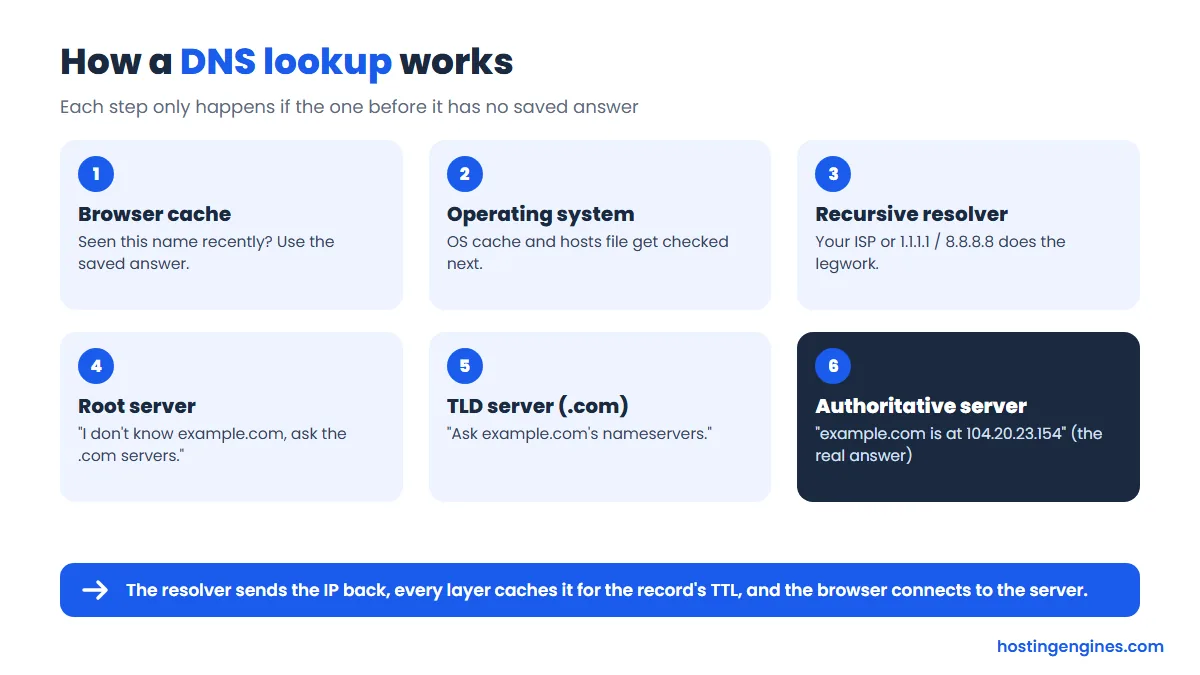
Here’s what happens in the split second after you type www.example.com and press Enter. Most lookups stop early, because something along the way already has the answer saved.
1. The browser checks its own cache
Browsers keep a short-lived list of names they’ve looked up recently. If you visited the site a minute ago, the browser already knows the IP and skips everything else.
2. The operating system checks its cache and hosts file
No luck? The browser asks the operating system. Windows, macOS and Linux each keep their own DNS cache, and they also read the local hosts file. An entry in the hosts file wins over real DNS on that one computer.
3. The recursive resolver takes over
Next the question goes to a recursive resolver. By default that’s one run by your internet provider, though you can switch to a public one like 1.1.1.1 or 8.8.8.8. The resolver does the real legwork for you, and because it serves thousands of users, it often has popular names cached already.
4. A root server points to the TLD
If the resolver has nothing cached, it starts at the top: a root server. The root doesn’t know example.com, but it knows who runs .com, and it replies with a referral to the .com servers.
5. The TLD server points to the domain’s nameservers
The .com servers don’t have example.com’s IP either. What they do have is the list of nameservers the domain owner set at their registrar, so they reply “go ask those”.
6. The authoritative nameserver gives the real answer
The domain’s own nameserver is the source of truth. It answers with the actual A record (the IP address). The resolver hands it back to your computer, every layer caches it for as long as the record’s TTL allows, and your browser finally opens a connection to the web server.
Want to see this for real? We sent the same question straight to each server in turn, with recursion switched off, so each one could only answer for its own part of the tree. Here’s what came back for example.com:
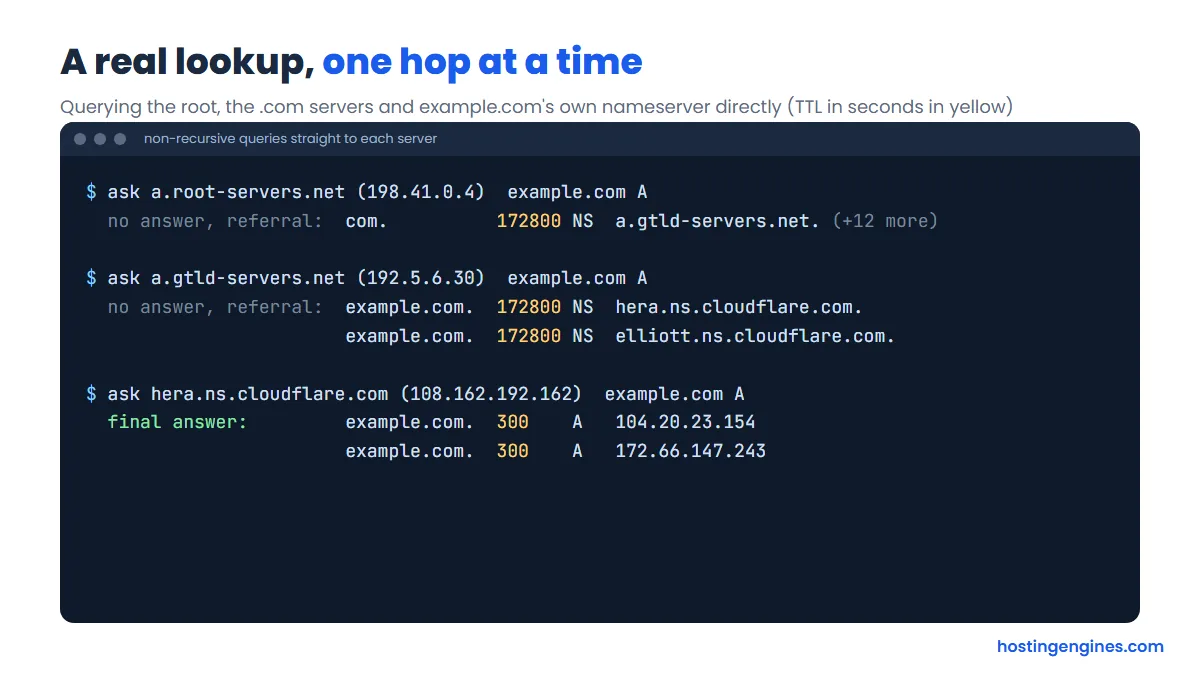
Notice the numbers in yellow. The root and .com servers say “you can remember this referral for 172,800 seconds”, which is two days. The final answer from example.com’s own nameserver can only be cached for 300 seconds. Keep that in mind, because it explains why some DNS changes feel instant and others take a day or two.
The DNS hierarchy: root, TLDs and domains
DNS names are read from right to left. In www.example.com, the most important part is the bit you can’t see: a trailing dot that stands for the root. Then comes the top-level domain (.com), then the domain you registered (example), then any hostname you create under it (www, mail, shop).
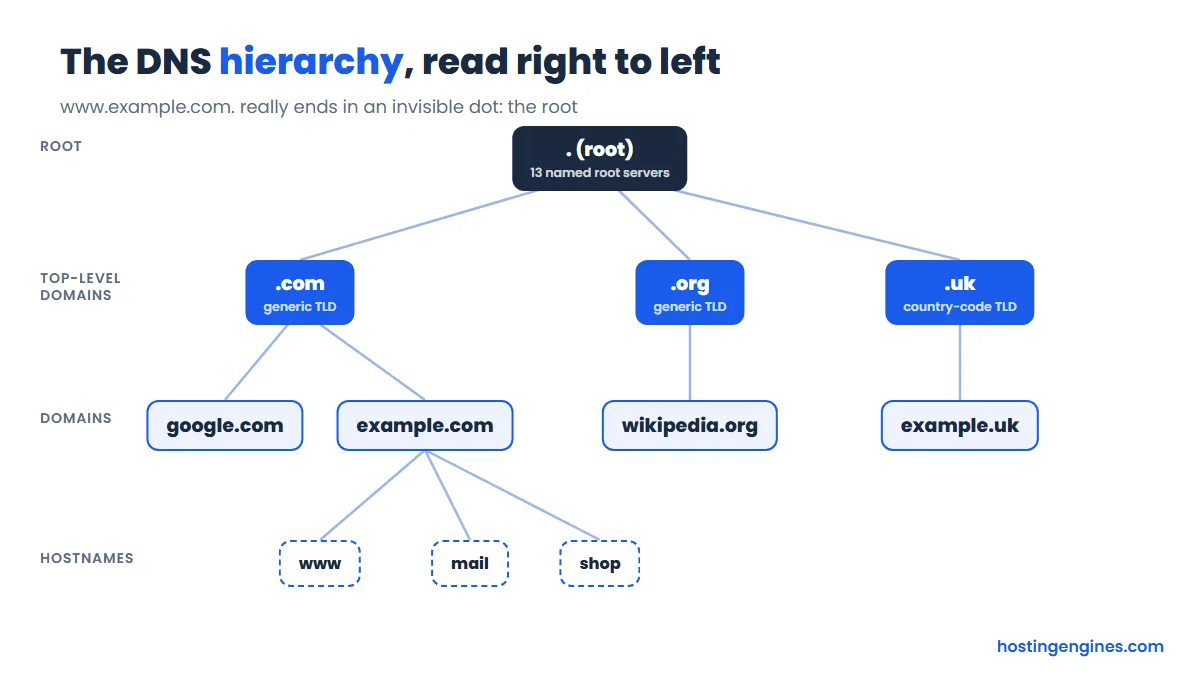
- Root servers. There are 13 named root server identities (a.root-servers.net to m.root-servers.net), run by 12 independent organizations. Each name is really a big group of machines spread around the world: the root server system reported 2,048 operating instances when we checked in October 2026.
- Top-level domains (TLDs). Generic ones like .com, .org and .net, newer ones like .shop or .app, and country codes like .uk or .de. IANA’s official list held 1,437 TLDs in October 2026. Each TLD has its own registry and its own servers.
- Second-level domains. The name you register through a registrar, such as example.com.
- Subdomains and hostnames. Anything you add in front: www, blog, mail. You create these yourself in your DNS zone, free and as many as you like.
The neat part is delegation. The root only knows the TLDs. The TLD only knows which nameservers each domain uses. Your nameservers know your records. Nobody has to hold the whole internet, and you can change your own records without asking anyone.
DNS record types explained (with examples)
Your domain’s settings live in a zone, which is just a list of records. Each record has a name, a type, a TTL and a value. Open the DNS editor in any hosting control panel and you’ll see these types again and again.
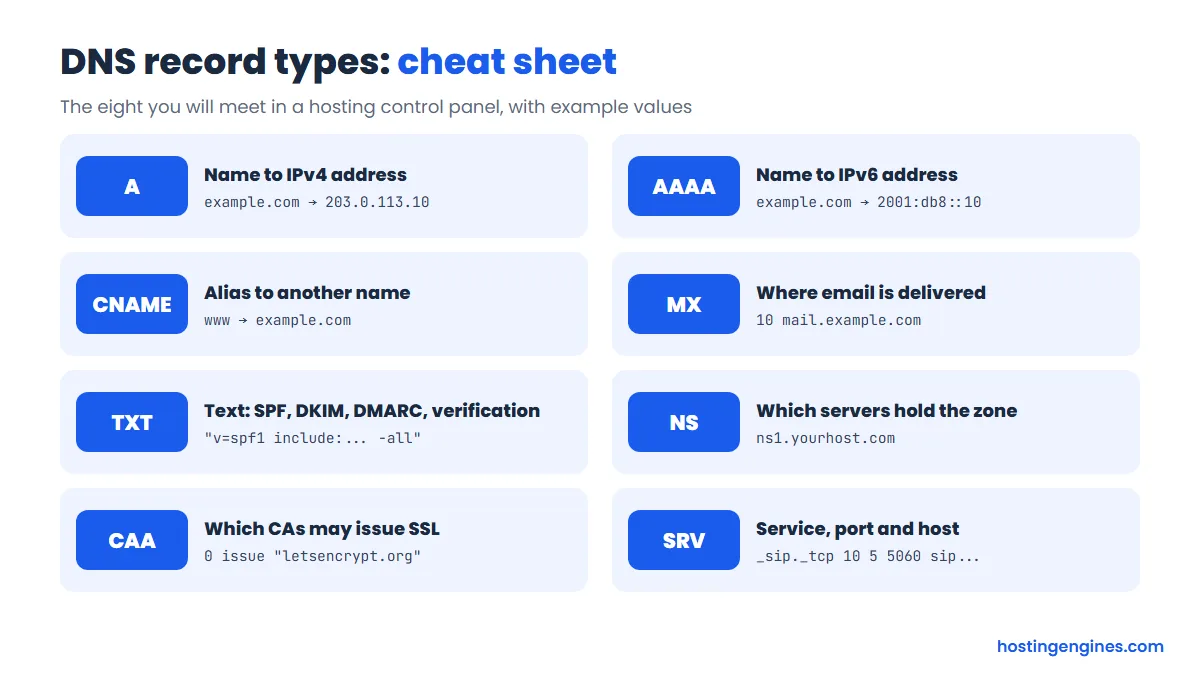
| Record | What it does | Example value |
|---|---|---|
| A | Points a name to an IPv4 address | example.com → 203.0.113.10 |
| AAAA | Points a name to an IPv6 address | example.com → 2001:db8::10 |
| CNAME | Makes a name an alias of another name | www → example.com |
| MX | Says which servers receive email, with a priority | 10 mail.example.com |
| TXT | Free text: SPF, DKIM, DMARC, ownership checks | "v=spf1 include:_spf.google.com -all" |
| NS | Lists the nameservers in charge of the zone | ns1.yourhost.com |
| CAA | Says which certificate authorities may issue SSL for you | 0 issue "letsencrypt.org" |
| SRV | Gives the host and port for a specific service | _sip._tcp 10 5 5060 sip.example.com |
A and AAAA records
These are the ones that make your website load. The A record holds an IPv4 address, the AAAA record (“quad A”) an IPv6 address. When your host says “point your domain to our server”, they nearly always mean “set the A record for @ (the bare domain) to this IP”. A name can have several A records, and resolvers will hand them out so traffic spreads across servers. You saw that above: example.com currently answers with two IPv4 addresses.
CNAME records
A CNAME says “this name is just another name for that one”. The classic use is www as an alias of the bare domain, so you only have to update one IP when you move. CDNs and SaaS tools also ask for CNAMEs, like shop → shops.myplatform.com.
One rule trips people up: a name with a CNAME can’t have any other records. That’s why you can’t put a standard CNAME on the bare domain (example.com), because the bare domain must also hold NS and SOA records. Some DNS providers work around this with their own “ALIAS”, “ANAME” or “CNAME flattening” features, which act like a CNAME but answer with A records.
MX records
MX records tell other mail servers where to deliver email for your domain. Each one has a priority number, and the lowest number is tried first; higher numbers are backups. An MX record must point to a hostname, not an IP address, and that hostname shouldn’t be a CNAME.
TXT records (and SPF, DKIM, DMARC)
TXT records hold text. Google Search Console, Microsoft 365 and lots of other services ask you to add one to prove you own a domain. But their biggest job today is email authentication, which gets its own section below.
NS records
NS records name the nameservers responsible for your zone. They exist in two places: at the TLD (the delegation your registrar sets) and inside your own zone. The copy at the registrar is the one that actually decides where the world goes for answers.
CAA records
A CAA record lists which certificate authorities may issue SSL/TLS certificates for your domain. With 0 issue "letsencrypt.org" in place, other CAs are supposed to refuse. It’s optional and a nice extra layer of protection, but if your host’s free SSL suddenly fails to renew after you added CAA, check that their CA is on the list.
SRV records
SRV records tell clients which host and port to use for a specific service. The name follows a pattern, _service._protocol.yourdomain, and the value holds priority, weight, port and target. You’ll mostly meet them when setting up VoIP, chat systems, Microsoft 365 features or some game servers. Most website owners never touch them.
You’ll also see SOA (the zone’s admin details and serial number) and PTR (reverse DNS, IP to name, set by whoever owns the IP, usually your host). You rarely edit SOA by hand.
Email DNS records: MX, SPF, DKIM and DMARC
If your emails land in spam or bounce, DNS is the first place to look. Four records work together here.
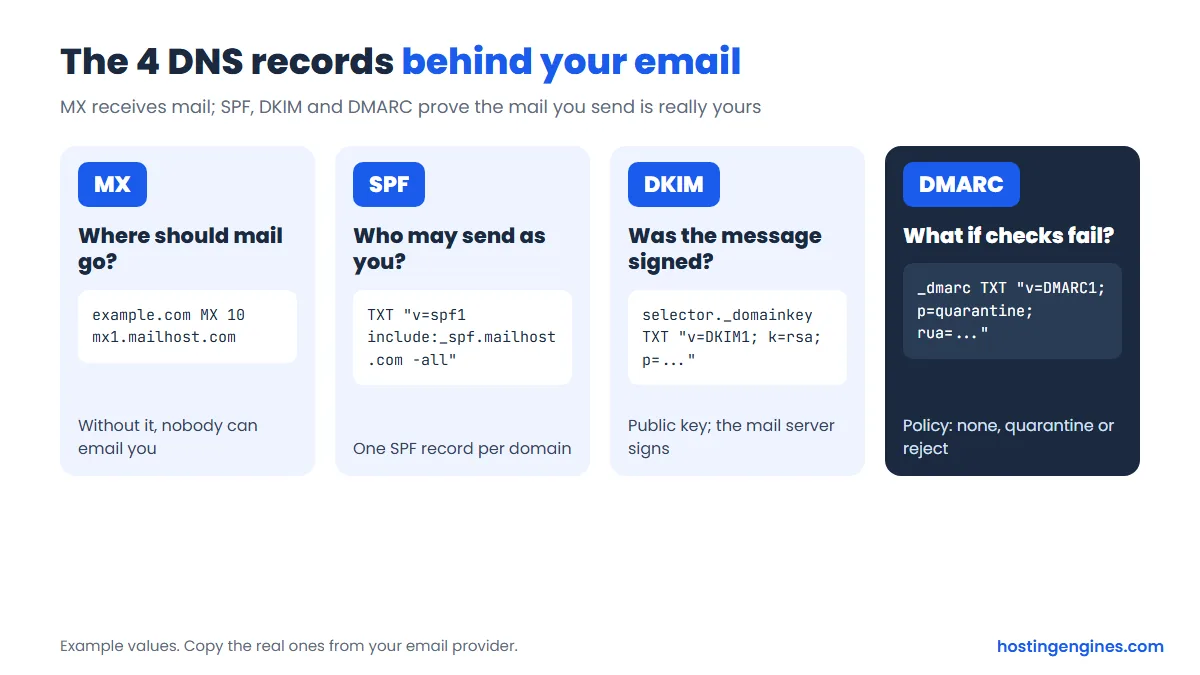
- MX: where incoming mail for you@yourdomain goes.
- SPF (a TXT record on the bare domain, starting
v=spf1): lists the servers allowed to send mail as your domain. You should have only one SPF record, so if you use two senders, combine them into one line. SPF also allows at most 10 DNS lookups (eachinclude:counts), and going over makes it fail. - DKIM (a TXT record at
selector._domainkey.yourdomain): publishes a public key. Your mail server signs each message, and receivers check the signature against this key. - DMARC (a TXT record at
_dmarc.yourdomain): tells receivers what to do when SPF and DKIM checks fail, with a policy ofnone,quarantineorreject, and where to send reports.
Don’t make these values up. Copy them exactly from your email provider’s setup page. A sensible path is to start DMARC at p=none, read the reports for a couple of weeks, then tighten to quarantine or reject once you know every legitimate sender is covered.
Here’s a real one: example.com publishes v=spf1 -all, which means “no server is allowed to send mail for this domain”. It’s a smart setting for any domain you own that never sends email, because it makes it much harder for spammers to fake it.
Nameservers vs DNS records: what’s the difference?
This is the single biggest source of confusion for site owners, so let’s untangle it.
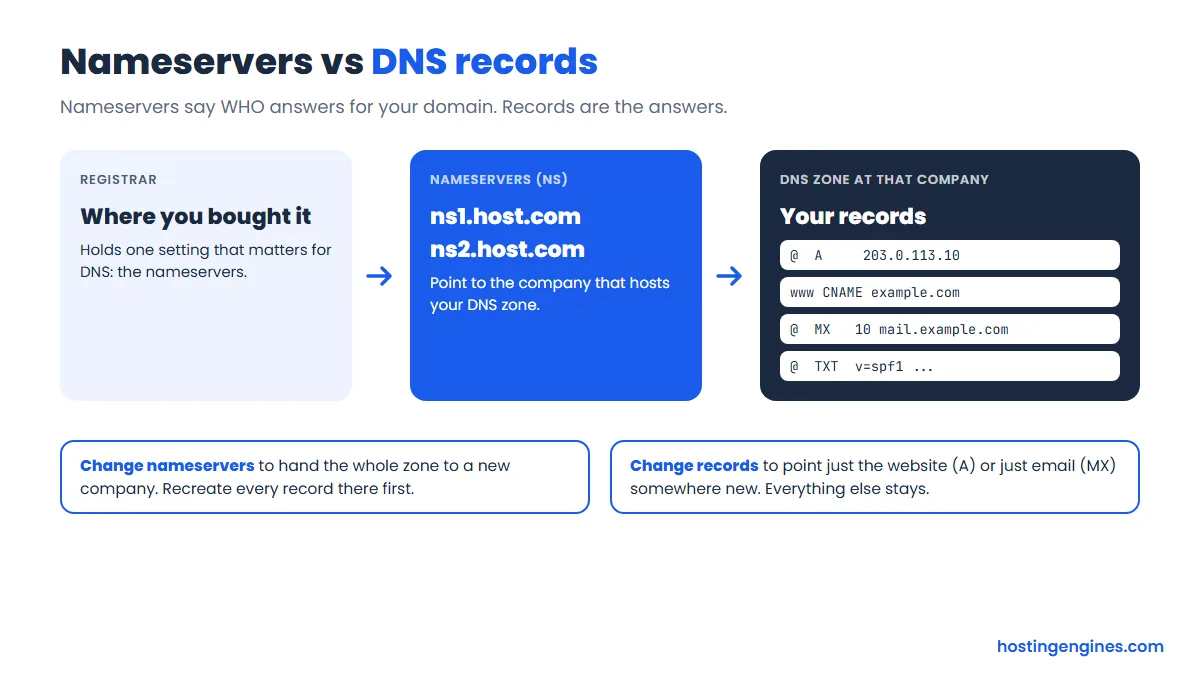
Nameservers are set at your registrar, the company where you bought the domain. They decide which company hosts your DNS zone. DNS records live inside that zone and hold the actual answers: your web server’s IP, your mail servers, your verification codes.
Here’s the trap. If your nameservers point to Cloudflare, editing records at your registrar or your host does nothing at all, because nobody is asking those servers. Always check where your nameservers point first, then edit records there. Our DNS lookup tool shows your current NS records in one click.
How DNS relates to web hosting
When you buy hosting, the host gives you one of two things to connect your domain. Which one you use matters more than most guides admit.
Option 1: change your nameservers to the host’s
You replace the nameservers at your registrar with something like ns1.yourhost.com and ns2.yourhost.com. The host then manages your whole zone and sets up website and email records for you. It’s the easiest route for beginners. The catch: any records you had before (email, verification codes) are gone unless you recreate them at the host, and it ties your DNS to that host, so moving later means doing it all again.
Option 2: keep your DNS, change the A record
You leave the nameservers alone and just set the A record for @ (and a CNAME or A for www) to the IP your host gives you. Email and everything else stays untouched. This is what we’d pick if you already have business email running, or if your DNS sits with a dedicated provider.
Switching hosts without downtime
DNS is the last step of any move, not the first. Copy the site to the new host, test it privately by adding the new IP to your computer’s hosts file, then lower your TTL a day ahead, switch the A record, and keep the old hosting live until traffic has fully moved. Our guide on how to migrate a WordPress site to a new host walks through the full process.
One more DNS-and-hosting link: a CDN such as Cloudflare often sits in front of your host, and it’s usually switched on through DNS, either by moving your nameservers to the CDN or by adding a CNAME it gives you.
TTL and DNS propagation
TTL (time to live) is a number of seconds attached to every record. It tells resolvers how long they may keep a cached copy before asking again. A TTL of 3600 means “trust this answer for an hour”.
“DNS propagation” sounds like your change is being pushed around the world. It isn’t. The moment you save a record, your authoritative nameserver starts giving out the new value. What takes time is all the resolvers and devices that cached the old value, each waiting for its own copy to expire. So different people see the old and new site for a while, depending on when their resolver last asked.
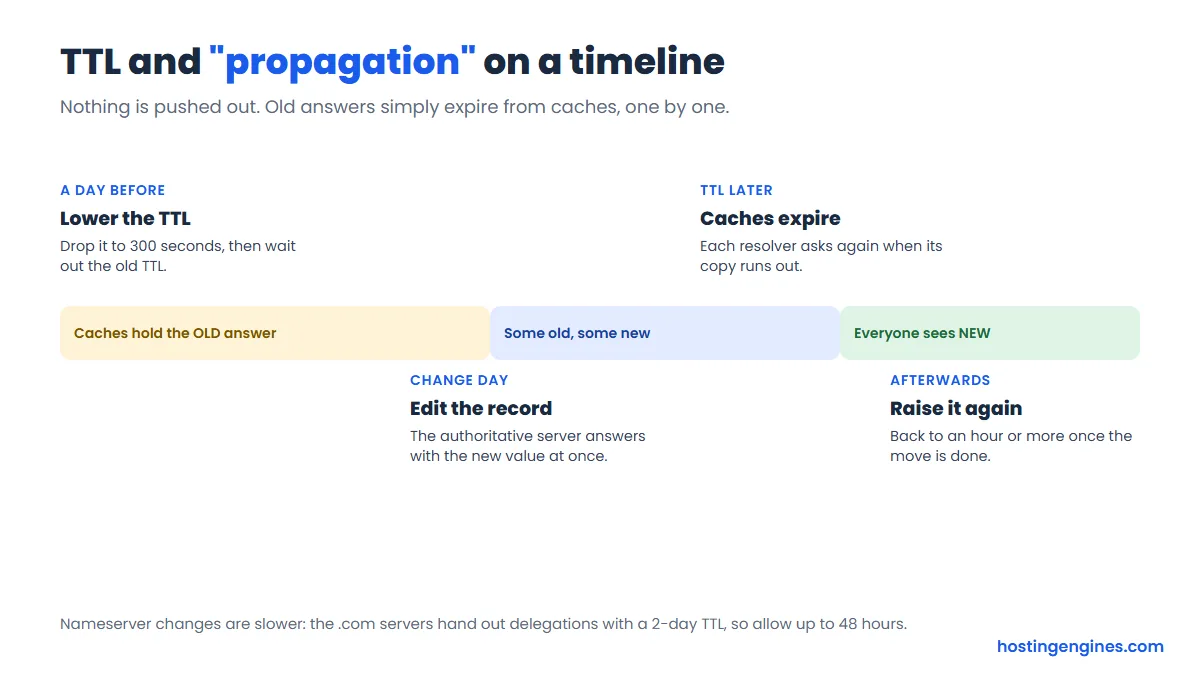
- A day or two before a change, lower the record’s TTL to 300 seconds (5 minutes). Then wait for at least the old TTL to pass, so every cache picks up the short one.
- Make the change. Most visitors now switch within minutes.
- Once everything works, raise the TTL back to an hour or more. Longer TTLs mean fewer lookups and a little more resilience.
Nameserver changes are the slow case, and now you know why. The NS delegation handed out by the .com servers carries a TTL of 172,800 seconds (two days), as our lookup above showed, and you can’t lower it. That’s where the familiar “allow up to 48 hours” advice comes from. Most people see the switch much sooner, but plan for the full two days.
Recursive resolvers and DNS caching
Caching is what makes DNS fast. It’s also why a fix you made ten minutes ago can look like it didn’t work. Several layers keep their own copy of each answer:
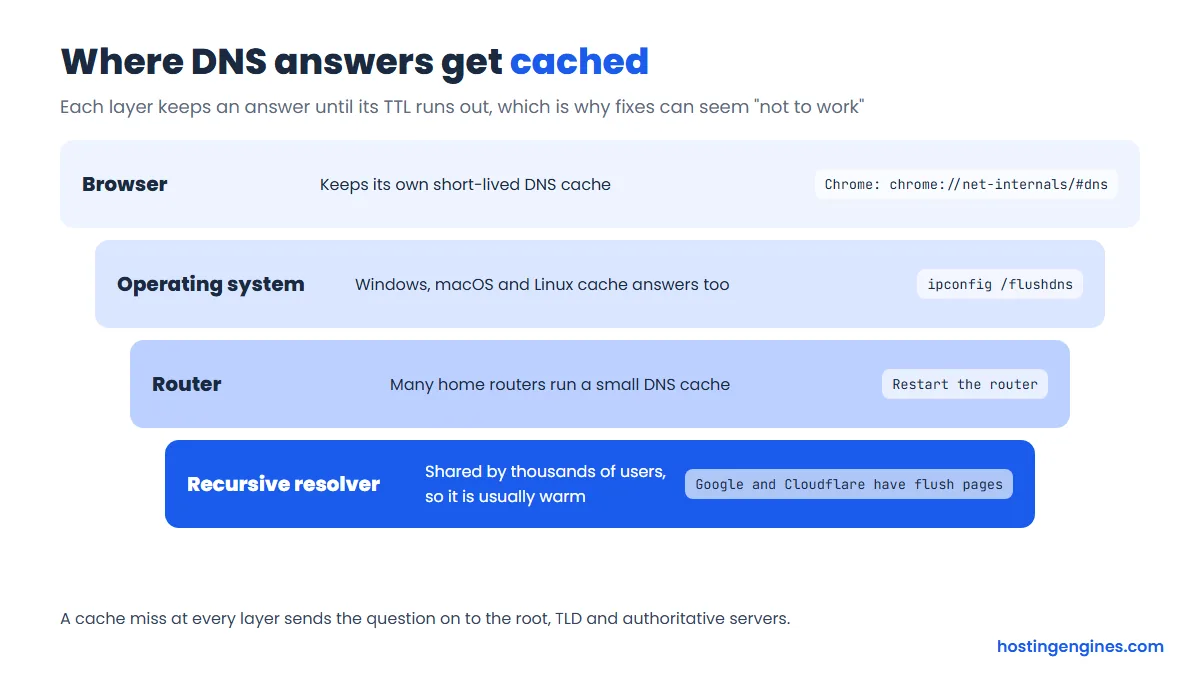
- Browser: in Chrome, open
chrome://net-internals/#dnsand click “Clear host cache”. - Windows: run
ipconfig /flushdnsin a terminal. - macOS: run
sudo dscacheutil -flushcache; sudo killall -HUP mDNSResponder. - Linux with systemd-resolved: run
resolvectl flush-caches. - Public resolvers: Google and Cloudflare let anyone ask them to drop a cached name, through Google’s Flush Cache page and Cloudflare’s Purge Cache page.
Resolvers also cache “this name doesn’t exist” answers. So if you looked up a new subdomain before you created it, you may keep getting “not found” for a while after it goes live. Patience, or a different resolver, sorts it out.
Public DNS resolvers: 1.1.1.1, 8.8.8.8 and 9.9.9.9
Your device uses your internet provider’s resolver unless you tell it otherwise. Many people switch to a free public resolver for speed, privacy or extra filtering. The three best known:
| Resolver | IPv4 addresses | Worth knowing |
|---|---|---|
| Cloudflare 1.1.1.1 | 1.1.1.1 and 1.0.0.1 | No content filtering on the standard addresses. Cloudflare’s privacy policy says it deletes its resolver logs within 25 hours. A “for Families” version (1.1.1.2, 1.1.1.3) blocks malware and optionally adult content. |
| Google Public DNS | 8.8.8.8 and 8.8.4.4 | Validates DNSSEC (Google says it has fully supported it since 2013). Supports DNS over HTTPS and DNS over TLS. |
| Quad9 | 9.9.9.9 and 149.112.112.112 | Run by a nonprofit. The main addresses block known malicious domains and validate DNSSEC. |
Is switching worth it? If your ISP’s resolver is slow or unreliable, yes. Quad9 is a nice pick for a family computer because of the malware blocking. For troubleshooting, it’s useful to have all three in your back pocket: if 1.1.1.1 shows your new IP but your ISP’s resolver doesn’t, it’s just caching, not a broken record.
DNS security: DNSSEC and DNS over HTTPS
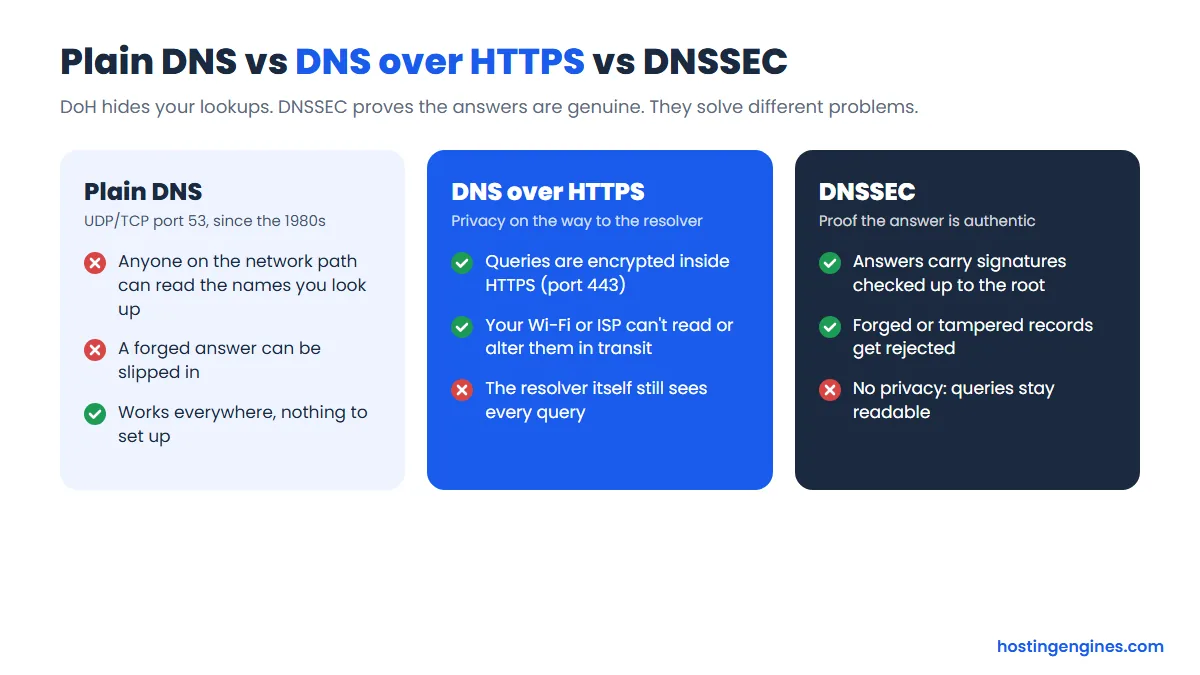
Classic DNS was built for a friendlier internet. Queries travel in plain text over port 53, and nothing in the original design proves an answer is genuine. Two different add-ons fix two different problems.
DNSSEC: proof that the answer is real
DNSSEC adds digital signatures to DNS records. Each zone signs its records, the parent zone vouches for the child’s key with a DS record, and that chain runs all the way up to the root zone, which is signed too (IANA holds formal key ceremonies for the root key). A validating resolver checks the chain and throws away any answer that was forged or tampered with, which stops cache poisoning attacks.
Turning it on for your domain is usually a toggle at your DNS provider plus a DS record at your registrar (often added automatically when both are the same company). One warning: if you move DNS providers with DNSSEC switched on, remove the old DS record first. A stale DS record makes validating resolvers reject your domain entirely, and your site vanishes for a big chunk of visitors.
DNS over HTTPS: privacy on the way to the resolver
DNS over HTTPS (DoH) wraps your queries inside normal encrypted HTTPS traffic on port 443. People on the same Wi-Fi, and your ISP, can’t read or change your lookups along the way. Major browsers and recent versions of Windows support it, and all three public resolvers above offer it. DNS over TLS (DoT) does the same job on its own port, 853.
Be clear about the limits, though. DoH hides your lookups from the network, not from the resolver you send them to. And it doesn’t prove the answer is genuine; that’s DNSSEC’s job. They work best together.
Common DNS problems and how to check them
Most DNS problems come down to a handful of causes. Here’s how to spot each one.
| Symptom | Likely cause | What to check |
|---|---|---|
| “DNS_PROBE_FINISHED_NXDOMAIN” or “server not found” | The name doesn’t exist: typo, missing record, expired domain, or nameservers not set | Look up the NS and A records. Check the domain’s expiry at your registrar. |
| Old site still shows after a move | Cached old answer | Compare the A record on 1.1.1.1, 8.8.8.8 and your own resolver. Flush local caches. |
| Record edits have no effect | You’re editing a zone that isn’t in charge | Check which nameservers the domain really uses, and edit records there. |
| Email bounces or goes to spam | Missing or wrong MX, two SPF records, no DKIM, strict DMARC | Look up MX and TXT on the domain, plus TXT on _dmarc and your DKIM selector. |
| SERVFAIL from some resolvers only | Broken DNSSEC (often a leftover DS record) or nameservers not responding | Test with a validating resolver like 8.8.8.8 and check the DS record at your registrar. |
| Free SSL won’t issue or renew | A record points elsewhere, or a CAA record excludes the host’s CA | Check the A and CAA records. |
Checking DNS with nslookup and dig
On Windows, nslookup is built in. Add a record type and a resolver to the end to ask a specific server a specific question:
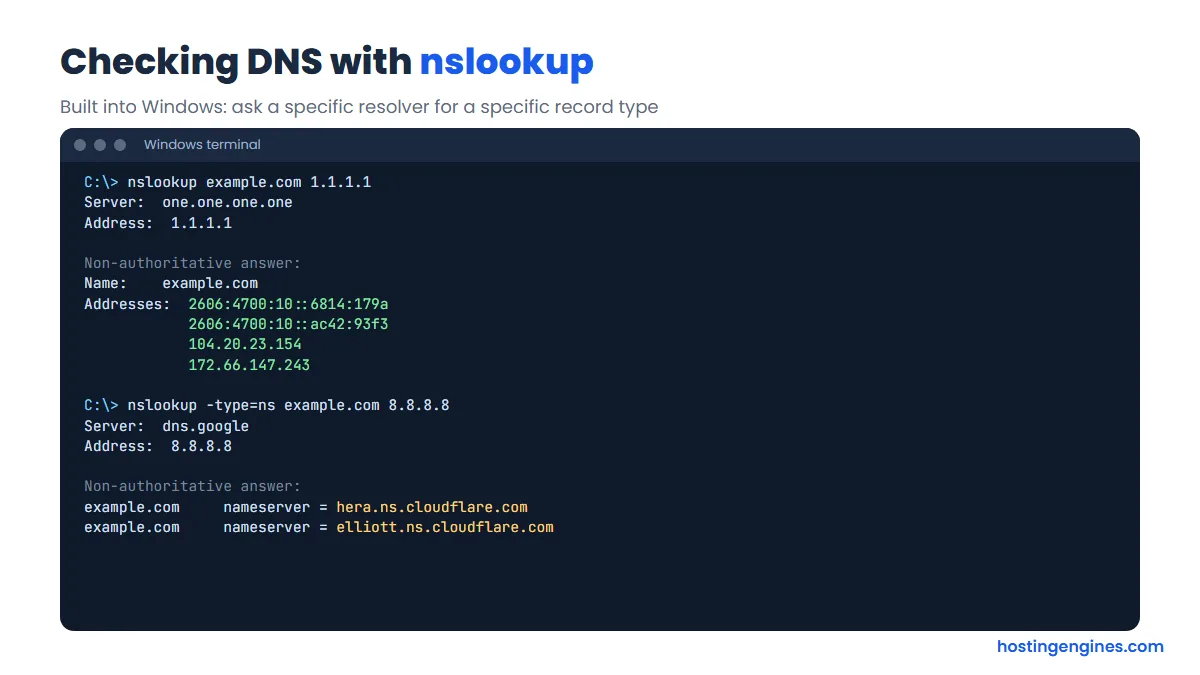
nslookup example.com 1.1.1.1shows the IP addresses Cloudflare’s resolver returns.nslookup -type=mx example.comshows mail servers. Swap inns,txt,caaand so on.- On macOS and Linux,
diggives more detail:dig example.com A,dig example.com MX +short, ordig @8.8.8.8 example.comto pick the resolver.dig +trace example.comwalks the root, TLD and authoritative steps, just like our example above. (On some Linux systems you need the bind-utils or dnsutils package first.)
A tip worth remembering: ask the authoritative nameserver directly (for example nslookup example.com hera.ns.cloudflare.com). If it shows the new value, your change is saved correctly and everything else is just caches catching up.
Online DNS checkers
No terminal? Use a browser tool. Our free DNS lookup tool shows A, AAAA, CNAME, MX, NS, TXT, SOA and CAA records with their TTLs, straight from a public resolver, so you see what the internet sees rather than your own cached copy. Google’s Admin Toolbox Dig is another solid option. To see whether a change has reached resolvers in different countries, global propagation checkers query dozens of locations at once.
FAQ
What is DNS in simple terms?
DNS is the internet’s phone book: it turns a domain name like example.com into the IP address of the server that hosts it. Without it, you’d have to type numbers like 104.20.23.154 to visit websites.
How long does DNS propagation take?
Record changes usually take effect within the record’s old TTL, often minutes to a few hours. Nameserver changes can take up to 48 hours, because the TLD servers let resolvers cache the delegation for two days.
Is DNS the same as web hosting?
No. Hosting is the server that stores and serves your website, while DNS just tells visitors where that server is. Your domain, DNS and hosting can all be with different companies.
Should I change nameservers or the A record?
Change the A record if you already have email or other services set up, because nothing else gets touched. Change the nameservers if you want the host to manage all your DNS and you’re happy to recreate any existing records there.
Which DNS server is the fastest?
It depends on where you are, so there’s no single winner. Cloudflare (1.1.1.1), Google (8.8.8.8) and Quad9 (9.9.9.9) all run large global networks; try each from your own connection and keep whichever answers fastest and most reliably for you.
What does “DNS server not responding” mean?
It means your device couldn’t get an answer from its resolver, usually because of a network glitch, a router problem or an ISP resolver outage. Restart your router, flush your DNS cache, or switch to a public resolver like 1.1.1.1 to test.