
This free HTTP headers checker requests any URL and shows every response header the server sends back, on every redirect along the way. It also grades the security headers and explains the caching rules in plain English. Paste a URL above and click Check headers. No sign-up needed.
How to check a website’s HTTP headers
- Type or paste the page you want to test, like
example.comorhttps://example.com/blog/. Headers can differ from page to page, so test the exact URL you care about. - Pick who the request should look like in Check as: Desktop browser, Mobile (iPhone) or Googlebot.
- Click Check headers. Our server makes the request, follows up to 10 redirects, and shows you what came back.
The Googlebot option is handy when a site behaves differently for search engines. Some security plugins, firewalls and caching setups send other headers (or a block page) to crawlers, and you’d never notice from your own browser.
How to read the results
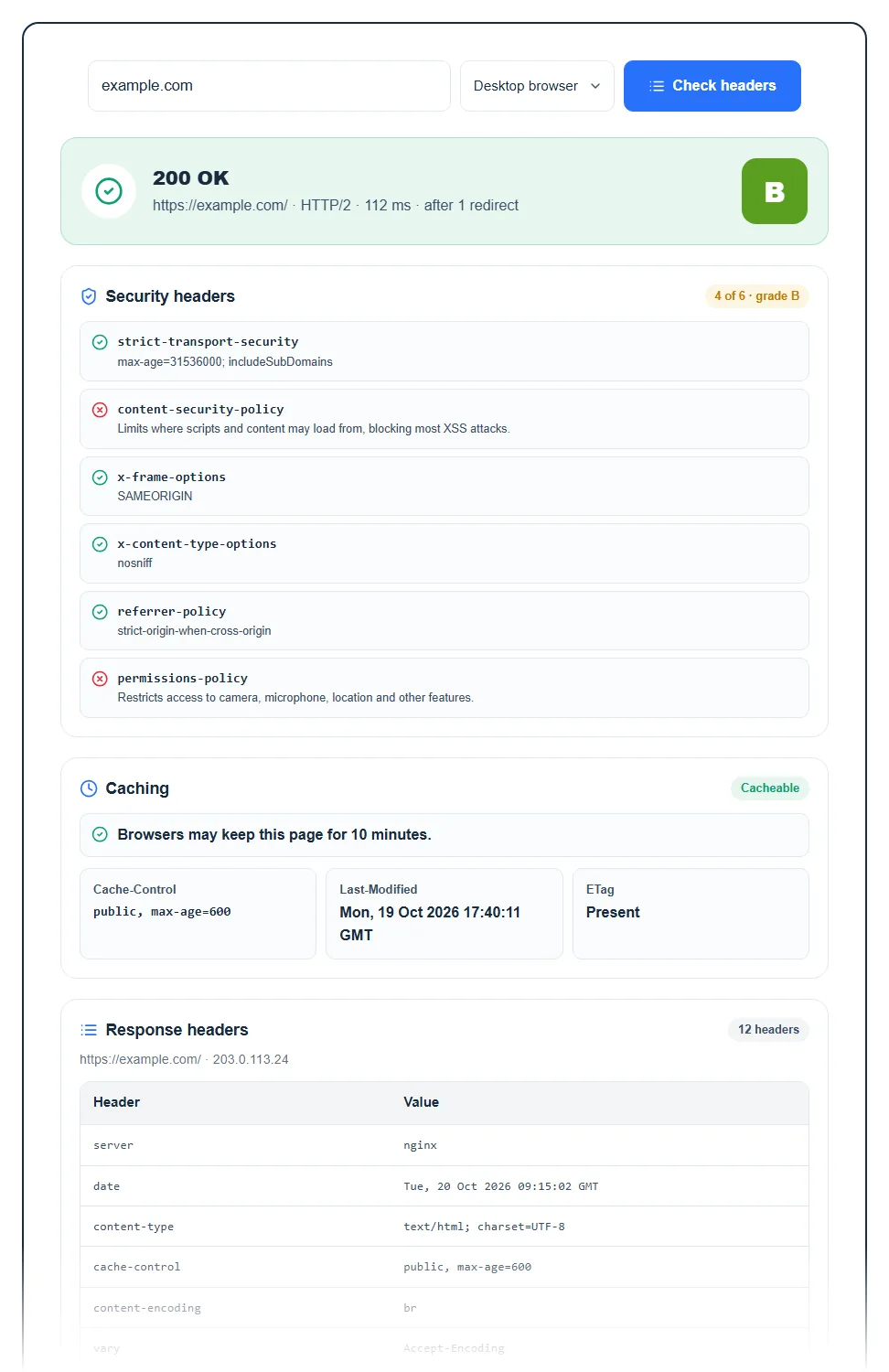
The summary card
The top card shows the final status code and its reason, such as 200 OK or 404 Not Found. Under it you’ll see the final URL, the HTTP version (such as HTTP/1.1 or HTTP/2), how long the response took in milliseconds, the CDN if one was spotted (Cloudflare, CloudFront, Fastly and others) and how many redirects happened first. The letter on the right is the security headers grade.
If the URL redirects in a loop or through too many hops, you’ll get a warning that the headers shown belong to the last redirect, not to a real page. If a certificate along the way is broken, you’ll see that too, because browsers would show a warning instead of the page.
Security headers and the grade
The tool looks for six headers that protect visitors, and each one present earns a point. Six gets an A+, five an A, four a B, and so on down to F for none.
- strict-transport-security (HSTS): tells browsers to always use HTTPS. It only counts when the page itself loads over HTTPS, since browsers ignore it on plain HTTP.
- content-security-policy: limits where scripts and other content can load from, which blocks most cross-site scripting. A policy without a
default-srcorscript-srcrule doesn’t count, because it doesn’t actually restrict scripts. - x-frame-options: stops other sites from loading yours in a frame (clickjacking). A
frame-ancestorsrule in your CSP counts instead. - x-content-type-options: stops browsers from guessing file types.
- referrer-policy: controls how much of your URLs get passed to other sites.
- permissions-policy: restricts access to the camera, microphone, location and similar features.
Keep in mind the grade checks whether a header is there, not how strict its value is. An HSTS header with a tiny max-age still gets the point, so read the values listed next to each one.
Caching
This section reads the Cache-Control header and labels the page Cacheable, Revalidated each visit, Not cached or No caching rules, with a sentence on what that means (for example, how long browsers and CDNs may keep a copy). You’ll also see the Cache status from your CDN or cache plugin if it sends one, like cf-cache-status: HIT or x-litespeed-cache: hit, plus Age, Last-Modified and whether an ETag is present.
Response headers and redirects
The full table lists every header of the final response, with the server IP it came from. If there were redirects, each one sits below in its own collapsible row (for example “Redirect 1: 301 Moved Permanently”), so you can see the headers each hop sent.
Common findings and what to do
- Low security grade. Most of these headers take one line each. On Apache or LiteSpeed hosting you add them with
Header setin .htaccess, on Nginx withadd_header, and many hosts and security plugins have a switch for them. Start with HSTS, x-content-type-options and referrer-policy, which rarely break anything. Test a content-security-policy carefully, because a strict one can block your own scripts. - “No caching rules” on images, CSS or JS files. Static files should be cacheable for a long time. Your caching plugin or CDN usually handles this.
- Cache status always MISS. Run the check twice. If the second run still misses, the page may be excluded from cache, or a cookie is bypassing it.
- Server or X-Powered-By shows exact versions. Not a hole by itself, but it tells attackers what to look for. Hiding version numbers is good housekeeping.
- Unexpected redirects. If the chain is longer than you thought, trace it with our redirect checker, which also tests all four http/https and www versions of a domain.
Seeing Cloudflare or another CDN here? Remember that the headers come from the CDN edge, which can add or change some of them. Our guide on what a CDN is and how it works explains why. And if the security grade worries you, it’s worth checking what your host does on its side too: here are the security features a good web host should have.
FAQ
What are HTTP response headers?
They’re lines of information a server sends with every page, before the page itself. They tell the browser the status of the request, the content type, how long it may cache the page, which security rules apply and where to go if the page has moved. Visitors never see them, but browsers and search engines read them all the time.
How do I check the HTTP headers of a website?
Paste the URL into the checker above and click Check headers. You can also open your browser’s developer tools, go to the Network tab and click the page request, or run curl -I https://example.com in a terminal. The online checker is the quickest way to also see redirects and test as Googlebot.
Which security headers should every site have?
The usual set is Strict-Transport-Security, Content-Security-Policy, X-Frame-Options (or CSP frame-ancestors), X-Content-Type-Options, Referrer-Policy and Permissions-Policy. Those are exactly the six this tool grades. HSTS and X-Content-Type-Options are the easiest wins.
Why do I see different headers than my browser shows?
A few reasons. Caches and CDNs can answer differently on each request, your browser sends cookies that can change the response, and some servers send different headers to mobile devices or bots. Try the other Check as options and run it twice to compare.
Do HTTP headers affect SEO?
Some do. The status code tells Google whether a page exists or has moved, an X-Robots-Tag header can block indexing without any tag in the HTML, and caching headers affect how fast repeat visits load. Security headers aren’t a ranking factor on their own, but they protect your visitors.
Is there a limit on how many checks I can run?
You can run 20 checks every 10 minutes, which is plenty for normal use. If you hit the limit, the tool tells you how many minutes to wait. It’s free and needs no account.